Templates
Create reusable starting points for your team's documents.
On this page
A template gives a new document its starting body and title. Templates belong to a team. Check the team switcher before creating or using one.
Team members can use templates. Team admins manage them. An organization owner or admin needs membership in the team before working with its templates.
Create a template
- Open Templates in the sidebar.
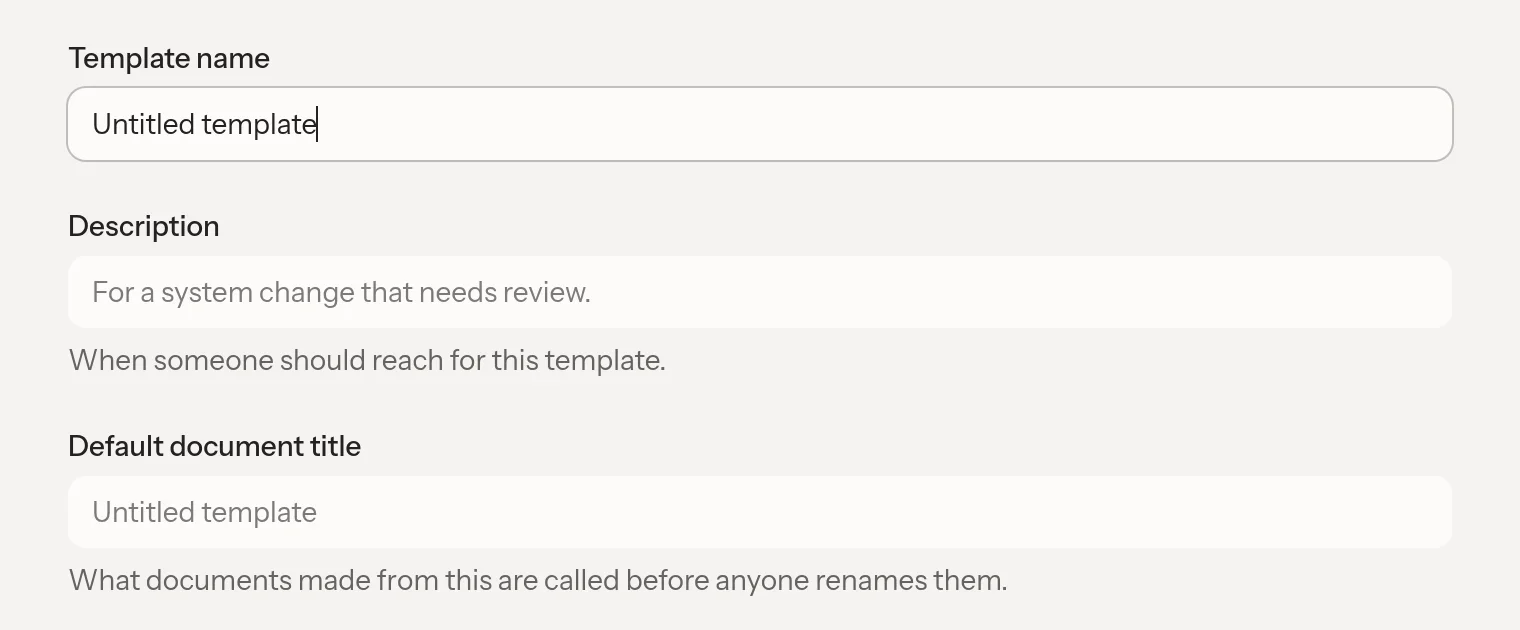
- Select New template. Livemark opens an Untitled template.
- Enter a Template name that people will recognize when they create a document.
- Add a Description that explains when to use the template.
- Set a Default document title if new documents need a title different from the template name.
- Write the Template body.
- Select Save in the page header.
The body editor supports headings, formatted text, links, and lists.
Save is disabled when nothing has changed or a save is in progress. Unlike regular documents, templates do not save as you write. Select Save before leaving.
Start a document from a template
- Choose New document from the document list or another document creation entry point.
- Choose the project where the document belongs.
- Select a template instead of Blank document.
- Complete document creation.
The new document starts with the template's content. Update its title and replace any example text.
The command palette also offers New from actions for templates. See Navigation for opening the palette and Documents for managing the resulting document.
Only templates from the destination project's team can be used. If you need the same structure in another team, an admin there must create a template in that team. A template is not an organization-wide library.
Find and maintain templates
Use Find a template on the Templates page to search names and descriptions. You can switch between grid and list views. Livemark remembers that layout choice in the current browser.
Admins can open a template, change its fields or body, and select Save. Changes do not update documents already made from the template.
The body is copied into new documents. Do not include private information that those documents' readers should not see.
Delete a template
Open the template, select More, then choose Delete template. Read the confirmation before proceeding. Deletion removes the reusable starting point, not the documents already created from it. There is no template restore action in this workflow.
Resolve missing options
If New template or editing controls are missing, check your team role. Members can use templates without permission to manage them. Ask a team admin to make the change.
If a template is absent from document creation, check the current team and destination project first. A search with no results can also mean that the name or description does not match your query. Clear the search before assuming the template was deleted.
For reusable instructions to the assistant rather than a document body, use Skills.