Teams
Manage team membership, invitations, and access to shared work.
On this page
Documents, projects, files, templates, skills, and team memories belong to a team. Chats are personal but take place within a team.
Use the team switcher to confirm where you are before creating work or inviting someone. For the relationship between teams and their parent organization, see Organizations.
Open team settings
Open the team switcher and choose Team settings. You can also open Settings, then Team.
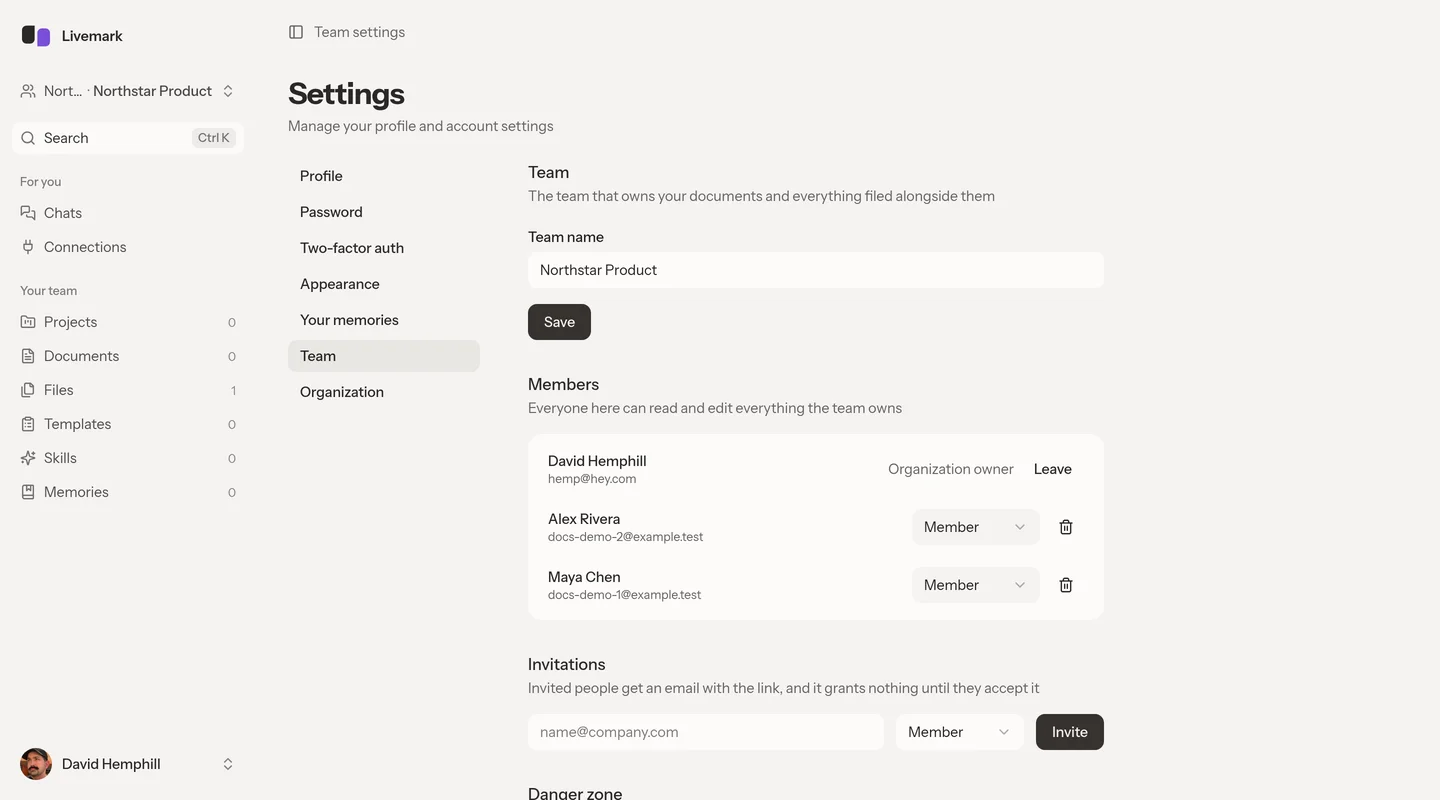
Members can view their team's settings. Team admins can rename the team, manage people, and send invitations. Organization owners and admins can administer the team's settings even when they are not members. That administrative access does not let them read its documents or files without joining.
Teams have Admin and Member roles. Organization owners and admins who belong to a team have effective team-admin permissions.
Invite a teammate
- Open Team settings as an admin.
- Find Invitations.
- Enter the person's email address.
- Choose the role they need.
- Select Invite.
Livemark emails an invitation link. The invitation grants no access until the person accepts it.
Use the pending invitation's revoke action to cancel it. Remove an accepted invitation's recipient through Members instead.
Admin access allows the person to manage members and team-wide resources. Either role gives access to the team's shared work, not just one project or document.
Change membership
Use the member controls in Members to change an available role or remove a person. The controls reflect your authority over that person. The organization owner is protected from ordinary member removal and role changes.
Removing someone takes away their team access but does not delete their documents.
In a single-team organization, organization roles and team administration are synchronized. Once an organization has several teams, team administration and organization administration are separate responsibilities. See Organizations before changing roles across several teams.
Leave a team
Use Leave beside your own membership when the option is available. Read the confirmation carefully. You lose access to the team's documents and files, and to your chats there. An admin must invite you back.
Leaving does not move your work. If this was your only team, Livemark shows a no-team page where you can start another or accept an invitation.
An organization owner may need to transfer ownership before leaving the organization. Do not assume a team role menu can transfer that responsibility.
Rename or delete a team
Admins can change Team name and select Save. Renaming does not move the team's content into a different organization.
Deletion requires organization-level authority and removal of other team members first. Deleting the organization's last team also requires permission to delete the organization. The interface may direct you to transfer ownership instead.
If deleting the last team remains blocked after clearing its member list, check Organization settings → People. People can belong to the organization without belonging to that team, and their membership still prevents deletion.
Delete this team permanently deletes its documents, projects, files, and chats. There is no undo. Leaving a team is the right operation when you only want to stop participating.
If a control is missing, check both your team and organization roles. If a page becomes unavailable after a switch or membership change, return through the team switcher.