Files
Upload files for the assistant and check their extracted text.
On this page
Files are reference material the assistant can search, such as customer specifications, research notes, PDFs, and images.
A file belongs either to one project or to every project in its team. Neither placement is a private upload area.
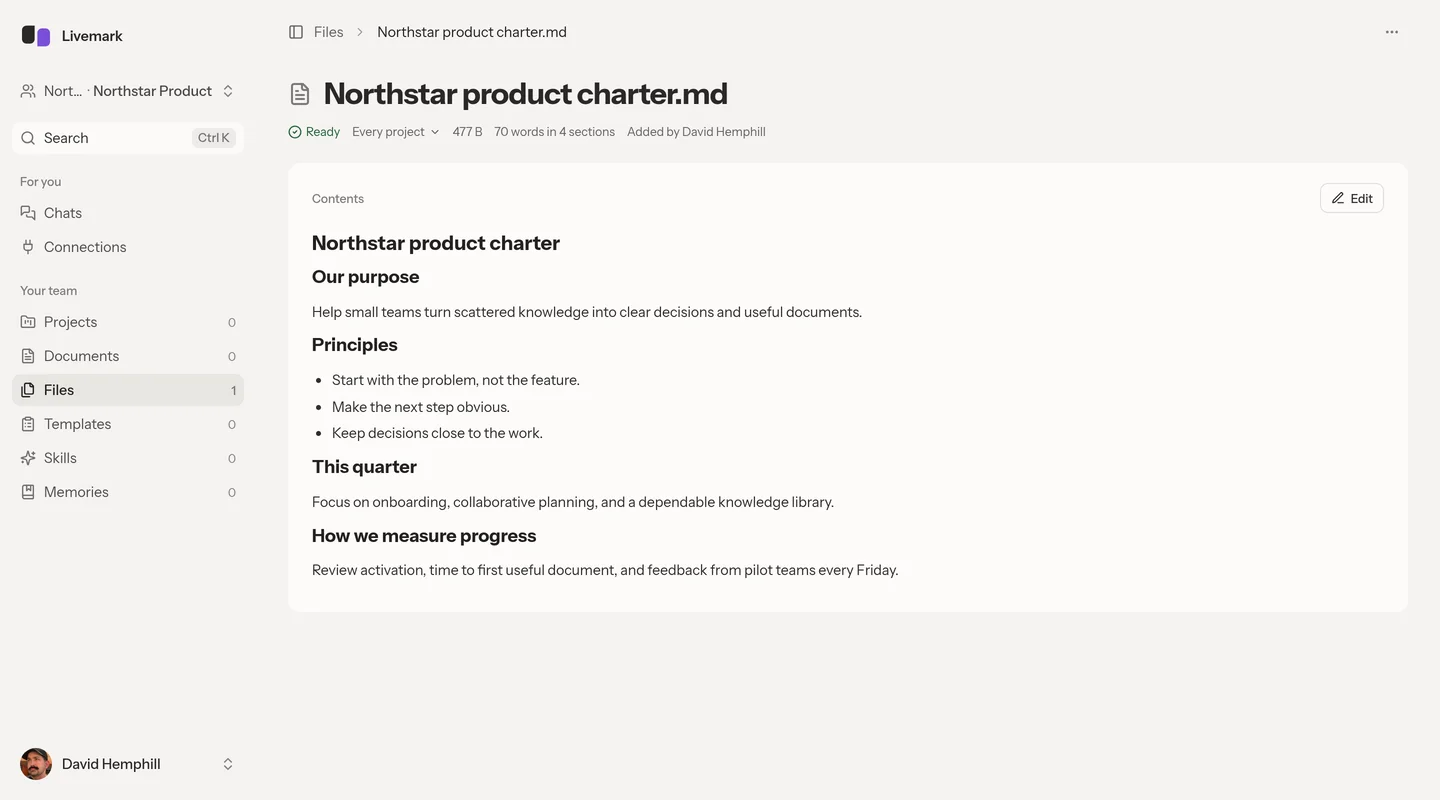
Choose where the file applies
Use a project's Files section for sources specific to that initiative. Use Files in the sidebar for reference material that applies to every project in the current team.
The sidebar list shows the every-project level, not a combined inventory of all project files. If a file seems missing, open the project where you added it before uploading another copy.
Project files remain team material. Switching the current team changes where new shared uploads belong. A move between projects stays inside the file's existing team.
Upload source material
- Open the intended project or the sidebar's Files area.
- Select Add files.
- Choose the files to upload.
- Wait for upload and processing to finish.
- Open a file to inspect what Livemark read.
Supported categories include text, Markdown, code, PDFs, and images. Ordinary reference files can be up to 30 MiB. Images can be up to 100 MiB. An unsupported format or an oversized file needs conversion or a smaller export before it can be added successfully.
The browser uploads file bytes to Uploadcare. Uploaded sources are stored by the service, not only on your device.
For images attached directly to chat, different limits apply: up to five images per message, at most 10 MiB each, where attachments are enabled. See Chat.
Check and correct extracted text
Open the file after processing to check the extracted text.
When extracted text is editable, enter edit mode, correct the text, and select Save. Cancel leaves the current extracted text unchanged. Saving replaces the text available to search and the assistant. It does not alter the original uploaded file.
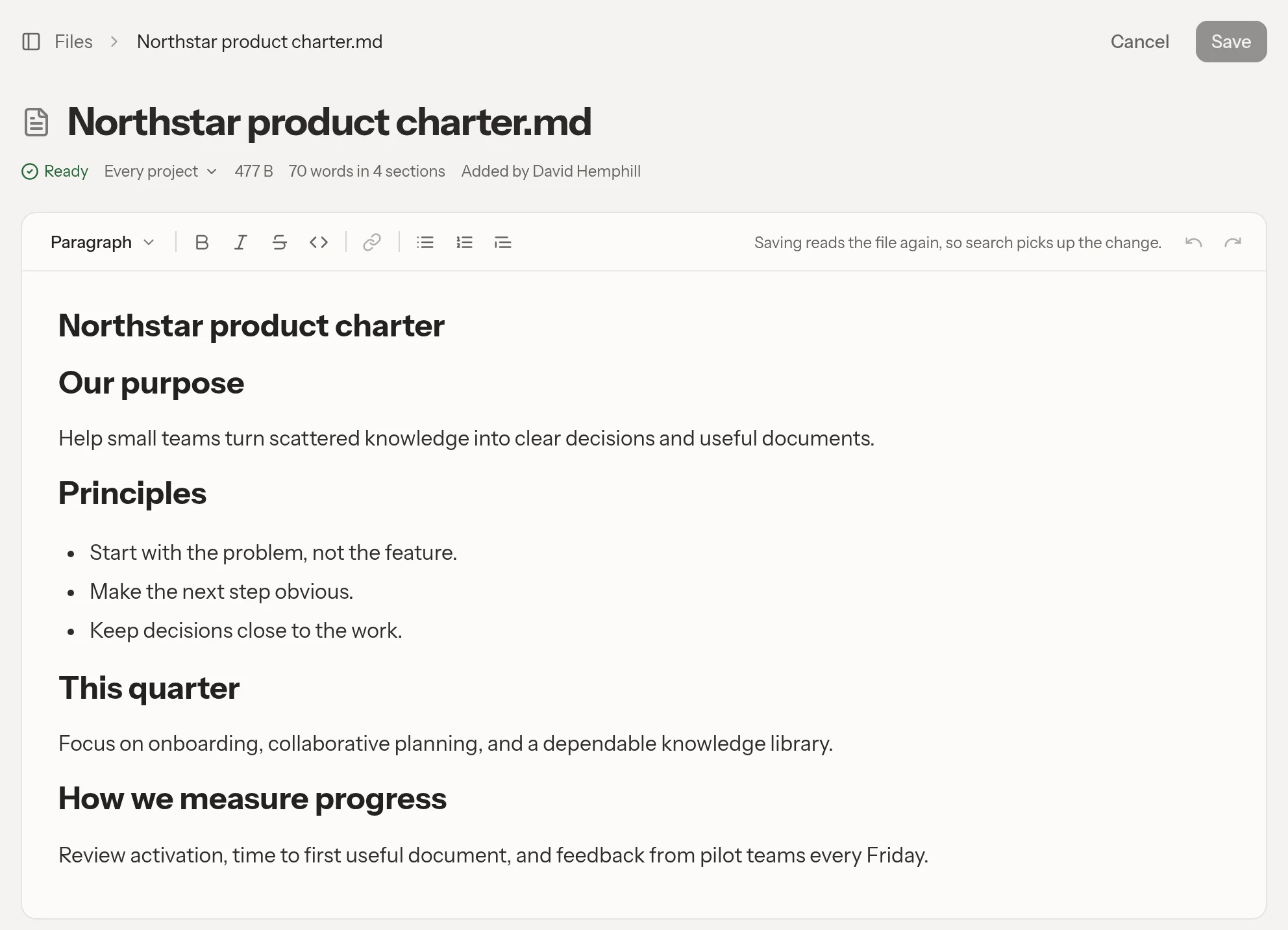
A file must finish processing before there is text to correct. If extraction fails, use the offered retry control. Retrying is available for failed extraction, not an unsupported format. For an unsupported file, convert it and upload the supported version instead.
Ask questions with sources
Open the relevant project chat and ask a specific question, such as "What cancellation terms appear in the customer agreement? Name the source."
The assistant can search the project's files plus files for every project. It can inspect a summary or outline and read the relevant passages. Where meaning-based search is unavailable, keyword search remains available. An absent search result is not proof that a fact does not exist. Name the expected file or use distinctive wording from the source to narrow the request.
The parent project's assistant does not search child-project files. Open the child project for those questions.
Maintain or remove a source
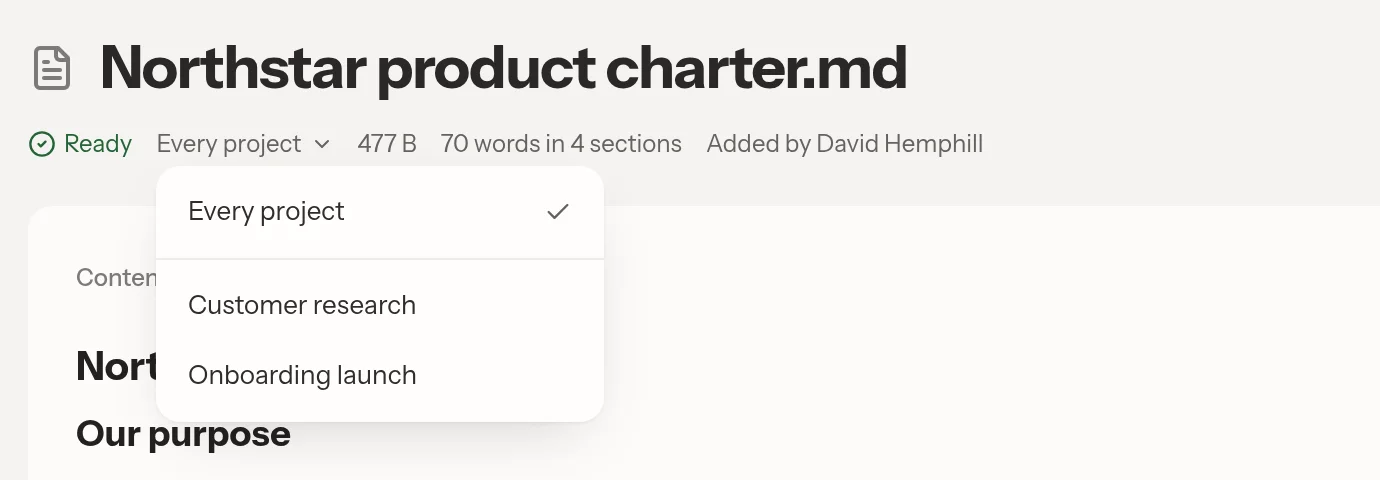
Use the file menu to Rename, Download, or Delete a file. Use its project picker to change placement within the same team, including Every project when the reference is broadly applicable.
Deleting removes the source rather than archiving it. Extracted decisions may also appear as proposed Memories. Review their wording and source excerpts separately. Uploading a file does not approve those proposals.
See Projects for organizing source material and MCP for file access from connected agents.