Account
Update your profile, protect sign-in, and understand account deletion.
On this page
Your account identifies you across the teams you belong to. Profile and sign-in settings are personal. Changing them does not rename a team or change its membership rules.
Open your user menu and select Settings. The settings navigation includes Profile, Password, Two-factor auth, and Appearance. Your memories appears when personal memories are enabled.
Update your name or email
- Open Profile.
- Change Name or Email address.
- Select Save.
- Check the saved state or any field error before leaving.
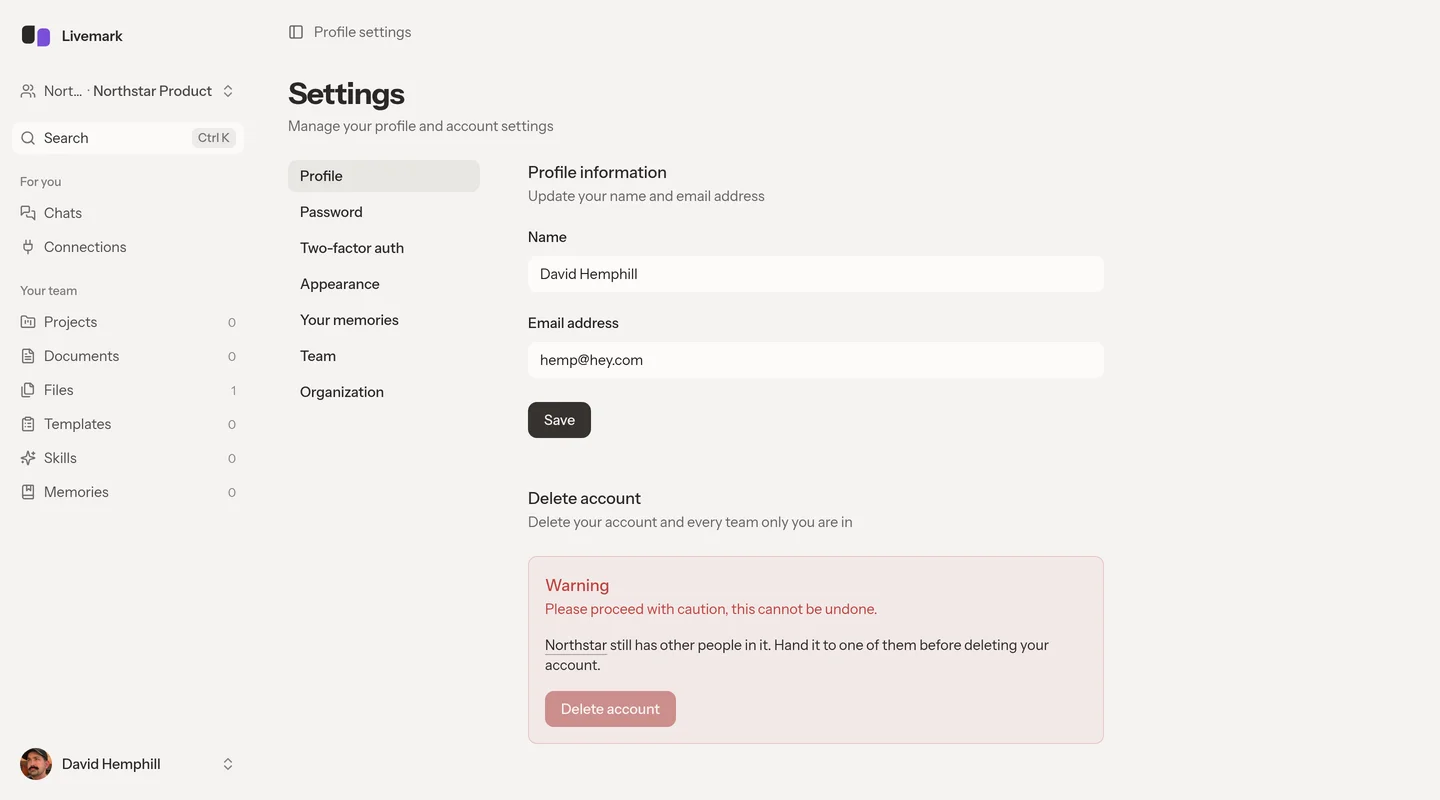
Changing your email address clears its verified status and sends a new verification email. Follow the verification link sent to the new address. Pages that require a verified email remain unavailable until you verify it.
If the message does not arrive, check the saved address and your spam folder. Use the resend action in the unverified-email notice when available.
Change your password
Open Password and enter your Current password, New password, and Confirm password. Select Save password.
A field error means the change did not complete. Correct the highlighted field before trying again.
Do not put passwords in chat. Changing your password does not establish that external service connections or MCP access tokens have been revoked.
Set up two-factor authentication
Open Two-factor auth and select Enable 2FA. Complete the setup dialog with an authenticator app, then enter the requested confirmation code. A password confirmation can be required before sensitive setup actions.
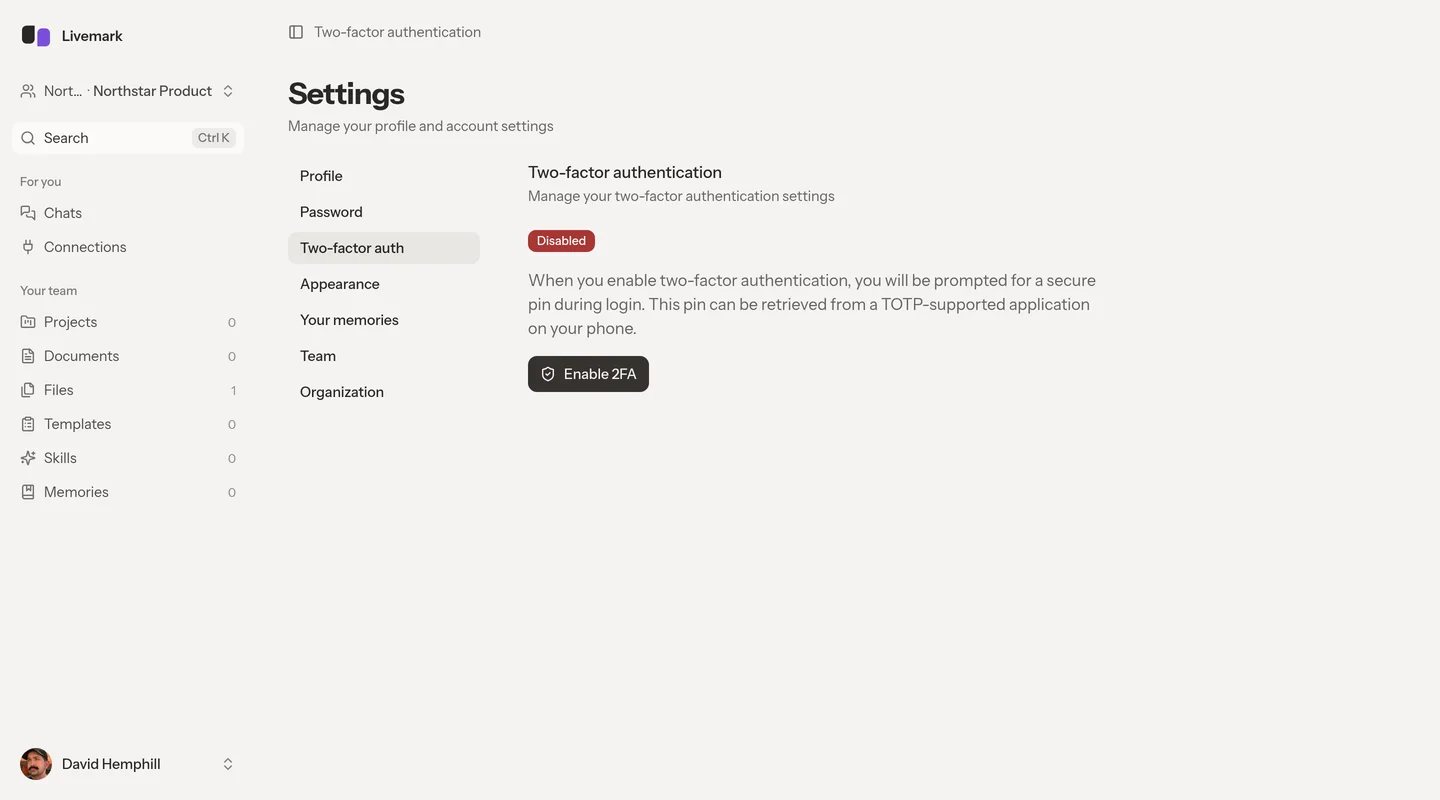
After setup, check that the page reports Enabled. Keep the recovery codes somewhere private and available if you lose your authenticator. Recovery codes are secrets, not notes to store in a shared document.
Select Disable 2FA to remove the extra sign-in requirement. If you replace your authenticator, complete the new setup before your next sign-in.
Choose appearance and keybindings
Open Appearance to choose the theme. The theme choice is kept by the current browser.
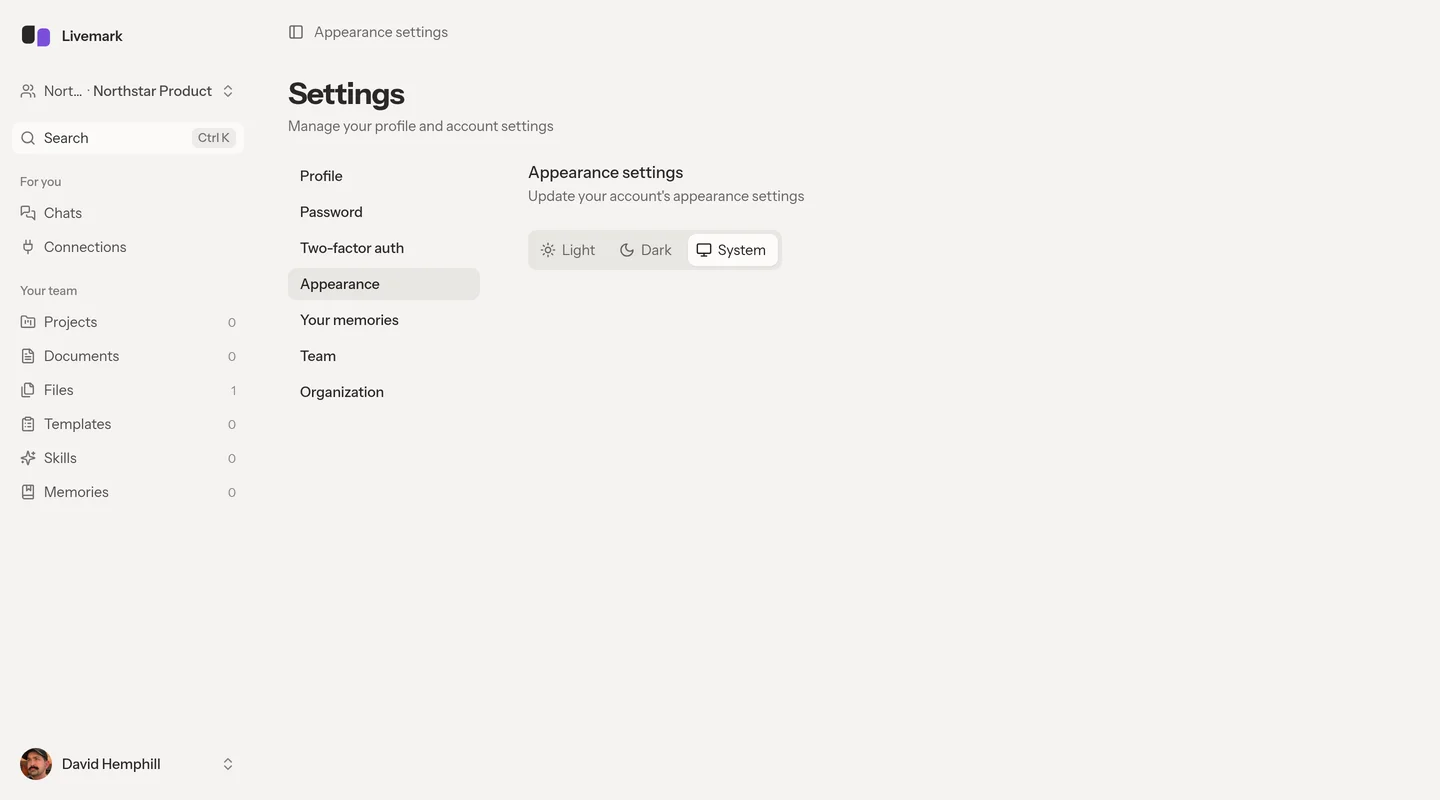
Some accounts also see Keybindings, with a Vim option. Vim is gated separately and is not available to every account. The preference follows your account, but pointer and device requirements determine whether editors use it. See Feature availability.
Manage your private assistant context in Personal memories.
Review access before leaving
Use Connections to inspect personal access tokens and connected applications. Revoke a token you no longer need. Logging out of the web app is not a substitute for managing an external agent's token.
Select Log out in your user menu to sign out. To leave one team without deleting your account, use the membership controls in Teams.
Delete your account
Account deletion cannot be undone. It deletes your chats and organizations you own where no other people remain, including those organizations' teams and content.
Teams in somebody else's surviving organization remain, even if you were their only team member. Documents and files you added to surviving teams remain without attribution to your deleted account. Account deletion is not a way to erase that shared work.
Before deleting, transfer organizations that still have other people. The Profile page identifies blocking teams or organizations and links to their settings. You cannot leave an organization with members but no owner.
When ready, select Delete account in Profile, read the confirmation, and enter your current password. You can cancel before submitting. A successful deletion signs you out. If membership changed while the page was open, Livemark can still refuse deletion and show the remaining ownership problem.