Projects
Keep related documents, reference files, and decisions together in your team.
On this page
A project groups an initiative's documents, reference files, and decisions.
Projects belong to the current team. A project owner is accountable for the work, but ownership does not make the project private.
Create a project
- Choose the team in the team switcher.
- Open Projects in the sidebar.
- Select New project.
- Enter a Project name.
- Submit the form to open the project.
You become the owner of the new project. Add a description on its page. The description is shared with the team, not a private note to the assistant.
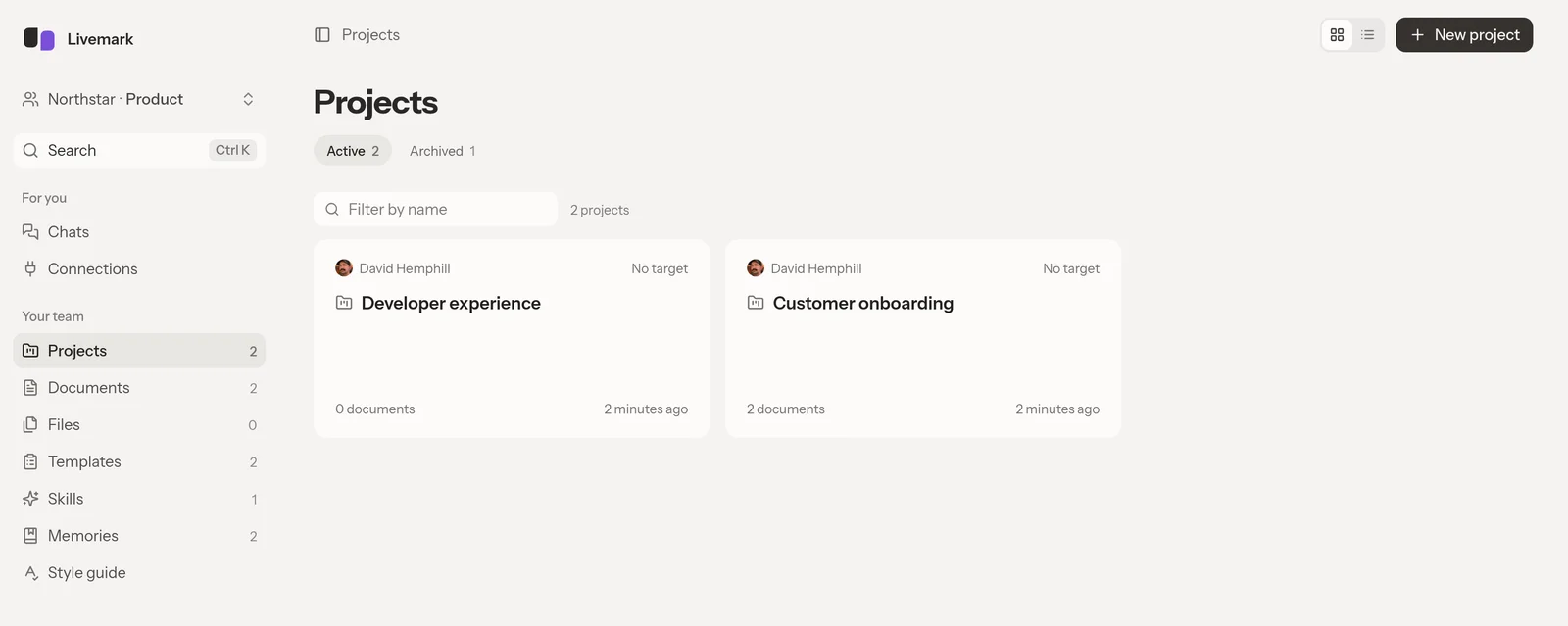
Use Filter by name to search the list. Active and Archived separate current and archived projects.
Add the material for the work
Use the project's Documents section for writing that belongs to the initiative. See Documents for creating and organizing drafts.
Add project sources through Files on the project. Reference material for the whole team belongs in the sidebar's Files area. See Files for scope and extracted text.
Use the project's Memories section for decisions that later conversations need. The sidebar's Memories area holds facts for every project. See Memories.
Work with the project assistant
The chat beside the project is your private conversation about that project. Another teammate opening the same page gets their own conversation, not your transcript.
Ask the assistant to find evidence in the project's files, summarize open questions, or create a draft document. A private conversation can still produce shared changes. Documents, project descriptions, and shared memories that the assistant creates are visible according to their own team permissions.
The parent project's assistant does not automatically read sub-project contents. Open the relevant sub-project when your question concerns its documents or files. See Project planning for dates, ownership, and nesting.
Put a finished project away
Only a team administrator can archive a project.
- Open the project menu.
- Select Archive.
- Read the confirmation before continuing.
Archiving removes the project, its sub-projects, and their documents from active lists, pickers, and agent tools for the whole team. It does not delete them. Find the project again under Archived, then use Unarchive to bring it back.
A document or sub-project archived separately stays archived when the parent returns. Check its own archive state if it is missing.
Resolve access or deletion questions
Team members can edit project details. Reassigning the owner requires the current owner or an administrator. Archiving and deleting require an administrator even when you own the project.
Deleting a project permanently removes its direct documents, reference files, project memories, and project conversations, including their transcripts. Its sub-projects and their contents survive as top-level projects. This differs from archiving a parent, which hides its sub-projects from active views.
Choose Archive to keep finished work. Check what will be lost before selecting Delete.
If a project link is unavailable, check the current team and your membership. A link does not grant access. Teams explains the shared boundary, and Feature availability covers missing planning or memory controls.