Memories
Save shared facts and decisions, review proposed memories, and correct outdated context.
On this page
Memories save short facts and decisions for later conversations. Keep long explanations and source evidence in documents or files.
Shared memories belong to one project or apply to every project in a team. Your own preferences belong in Personal memories, not in shared project context.
Choose the right scope
Open Memories in the sidebar to see facts for every project. Open a project's Memories section to see that project's own decisions. The two lists are separate, so a project-specific note does not appear as a team-wide rule.
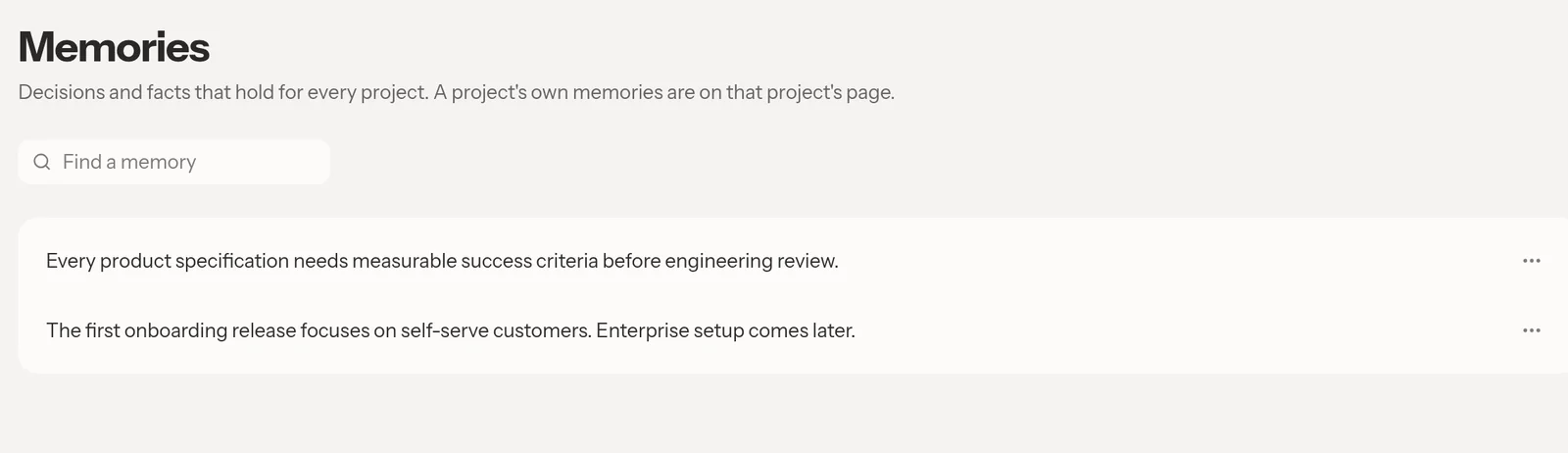
Every team member can read shared memories. Members can add and change project memories. Only team administrators can maintain memories for every project, including accepting or rejecting proposals at that scope.
Project memories are visible to the team, not private notes.
Add an agreed decision
- Open the project where the decision applies, or the team Memories page if you administer team-wide context.
- Select New memory.
- Write the fact or decision in a form that makes sense without the original conversation.
- Check Applies to.
- Select Save.
For example, "The first onboarding release supports self-serve customers. Enterprise setup is out of scope" is more useful than "We agreed on option two."
You can also tell the assistant to remember a decision. Check the resulting memory card and its placement. A chat being private does not make the saved team memory private.
Review proposals before accepting them
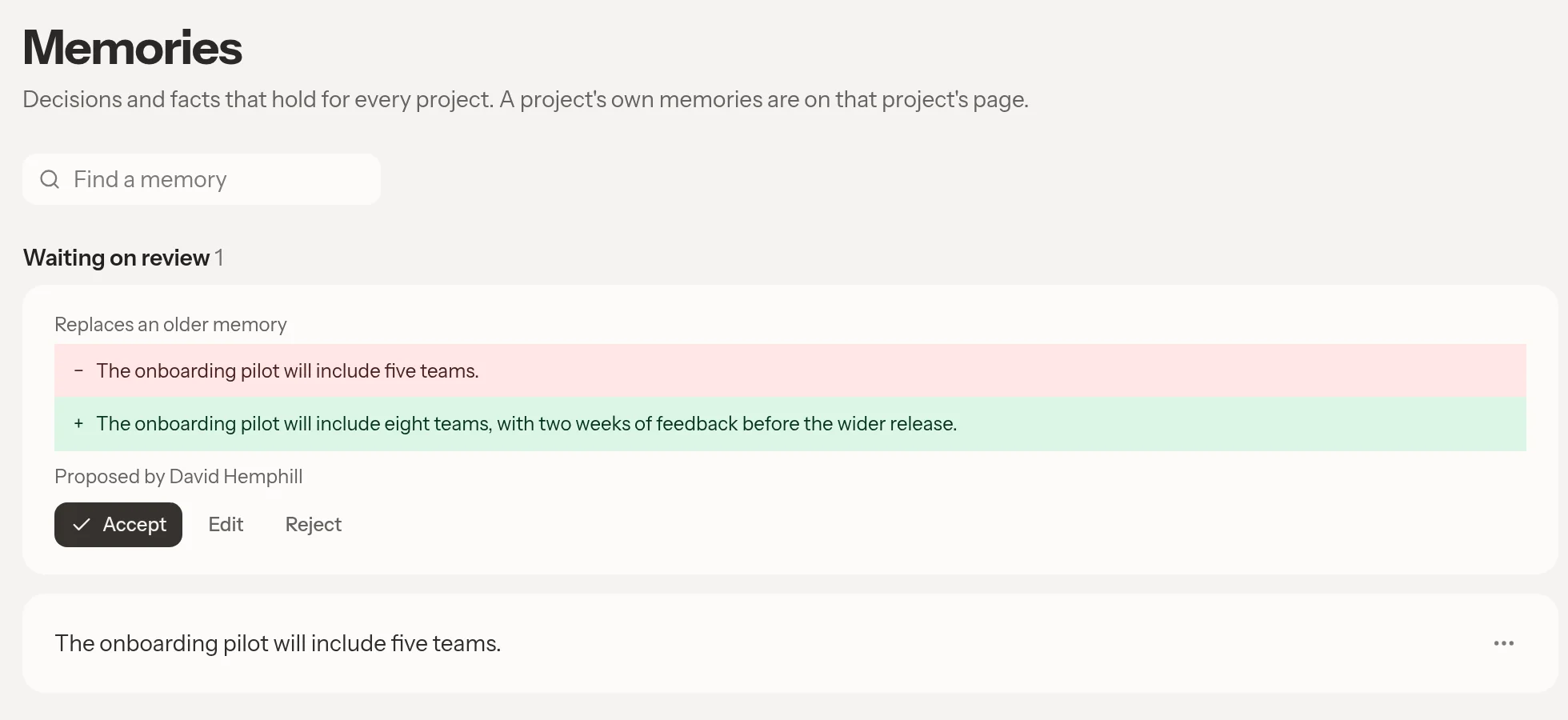
Files and assistant work can produce proposed memories. Proposals appear under Waiting on review and are not the same as accepted context.
- Read the proposed wording.
- Inspect the source excerpt when one is provided.
- Check whether the proposal replaces an older memory.
- Select Accept, Edit, or Reject.
Edit a proposal to correct its wording before selecting Accept. A replacement shows the old and proposed wording together. Accept all appears when at least two proposals are available for you to decide.
If the page says A team admin decides these, ask an administrator to review them. Moving a proposal is not a way to bypass the permission needed to replace an existing memory.
Correct or move existing context
Use Find a memory on the team page to search the list. Open a memory's menu to edit or delete it.
When the decision itself changes, ask the assistant to replace the old memory rather than retain contradictory facts. Replaced memories remain available as history instead of both being treated as current context.
Use Applies to while editing to move a memory to another project or to Every project. You need permission at both the original and destination levels. A member cannot move an administrator-controlled team-wide memory into a project to gain edit access.
Recover from a mistake
Check a chat memory card for Undo when the assistant saved something incorrectly. Review the affected memory after undoing, especially when the change replaced older context.
Moving a personal memory into shared scope publishes it to teammates and asks for confirmation. Some memories tied to replacement history cannot move across that boundary. The placement control explains the restriction.
If memory controls are absent, check Feature availability. For reusable instructions rather than facts, use Skills. For the evidence behind a decision, use Files or Documents.