Navigation
Find work, run commands, and switch teams without confusing personal and shared content.
On this page
Livemark's sidebar separates your personal activity from the current team's shared work. Before creating a document or looking for a file, check the team switcher. The selected team controls the lists and pages you see.
Choose the right section
Under For you, Chats contains your conversations, and Connections contains your service grants and agent access tokens. These are personal, not shared with the team.
The team navigation contains Projects, Documents, Files, Templates, Skills, and Memories. Style guide appears when writing-style support is enabled for that team.
Choose Projects when you want a body of related work and its context. Choose Documents to find individual documents. Files contains reference files, while Templates and Skills provide reusable document structures and assistant instructions.
Team Memories and Your memories are different. Team memories preserve shared context. Your memories belong to your account and are reached through Settings when that feature is available. See Personal memories.
Open search and commands
Select Search in the sidebar, or press Command+K on macOS and Ctrl+K on other platforms. The command palette combines navigation, creation actions, and search.
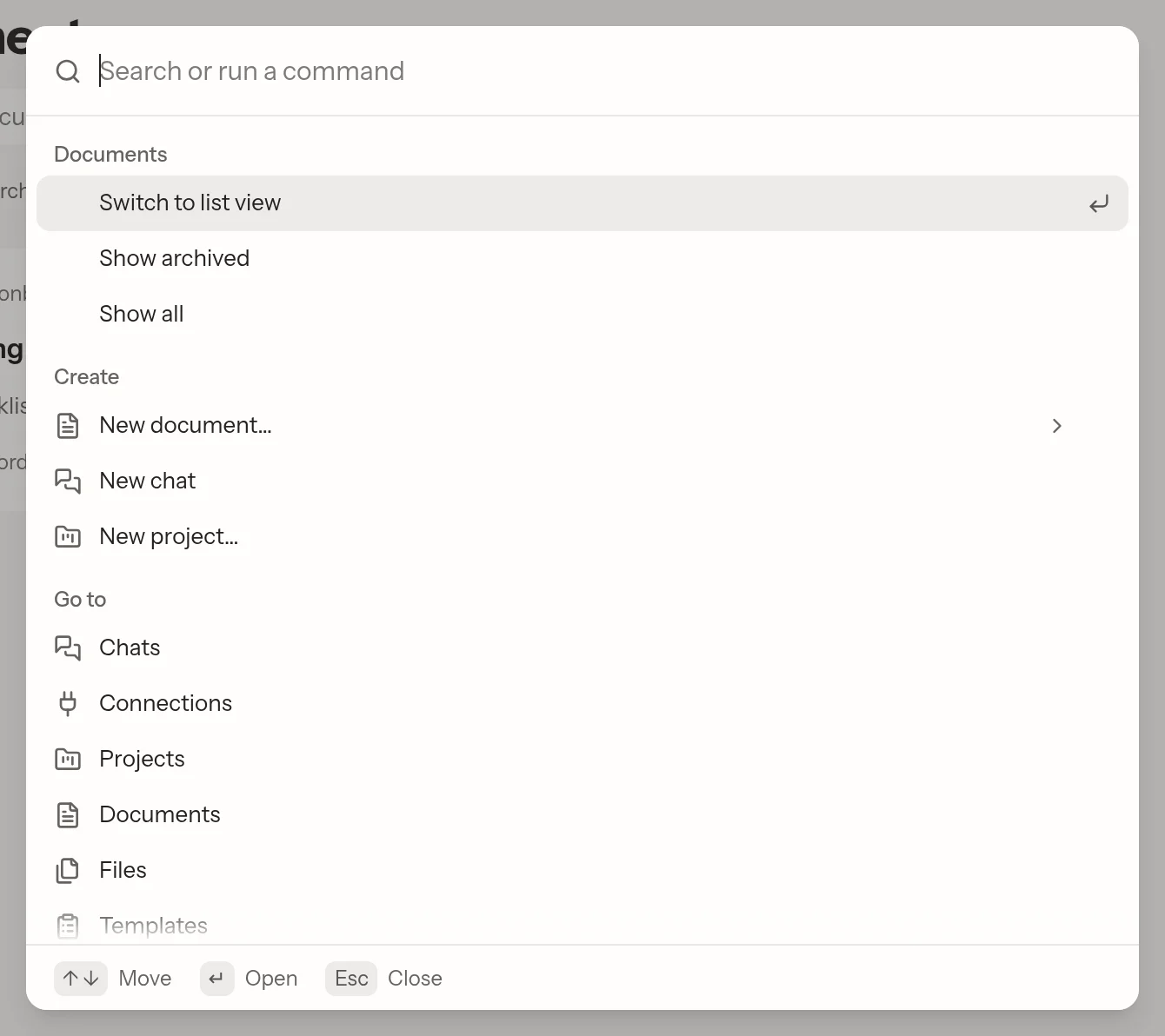
- Open the palette.
- Type a name or command.
- Move through results with the arrow keys.
- Press Enter to open or run the selected result.
- Press Escape to close the palette.
Available commands depend on the page and your permissions. For example, a document list can offer a layout change or an archive filter. Creation commands can ask for a project or template before creating anything.
Understand search results
Palette search is scoped to the current team. It finds documents, projects, your own chats, files, templates, and skills by their titles or names. It does not search document body text.
Each result group shows a limited set of matches. Follow See all when offered, or open the relevant section and use its search. The Documents page can search document text, so it is a better place to look for a phrase from the body.
Archived projects and documents are excluded from palette search. Documents inside archived projects are excluded too. Open the relevant list and show archived work before concluding that something was deleted.
If search is unavailable, open the section through the sidebar.
Switch teams
Open the team switcher and select the destination team. The selected row has a check mark. Organizations with several teams group those teams under the organization name.
A switch changes the web application's team context across your tabs. Check the team name before submitting work from a tab you left open.
Switching teams does not copy or move content. You need membership in a document's team to open it.
Reach settings or recover your place
Open your user menu and choose Settings for profile, password, two-factor authentication, and appearance. Team administration is available through Team settings in the switcher. Organization settings appears according to your role and organization structure.
If you no longer belong to a team, Livemark shows a no-team page instead of a shared content list. You can start another organization or accept an invitation. Account settings remain separate from team membership.
External agents select teams through MCP, not the browser switcher. Switching teams in the browser does not limit an agent's access.