MCP
Connect external agents to Livemark with authenticated, team-bound access.
On this page
Livemark is an MCP server. External agents such as Claude Code, Codex, and Cursor can use it to search, read, and work on Livemark content as the person who connects them.
This is inbound access to Livemark. It is separate from Connections, where Livemark's assistant reads services such as GitHub or Linear. Authorizing one direction does not authorize the other.
Connect an agent
- Sign in to Livemark and open Connections.
- Find Connect an agent.
- Copy the command shown for your client.
- Run the command in that client's environment.
- Complete the browser sign-in and authorization that the client opens.
The Claude Code and Codex commands include your installation's address. For other clients, configure an HTTP MCP connection using the same endpoint.
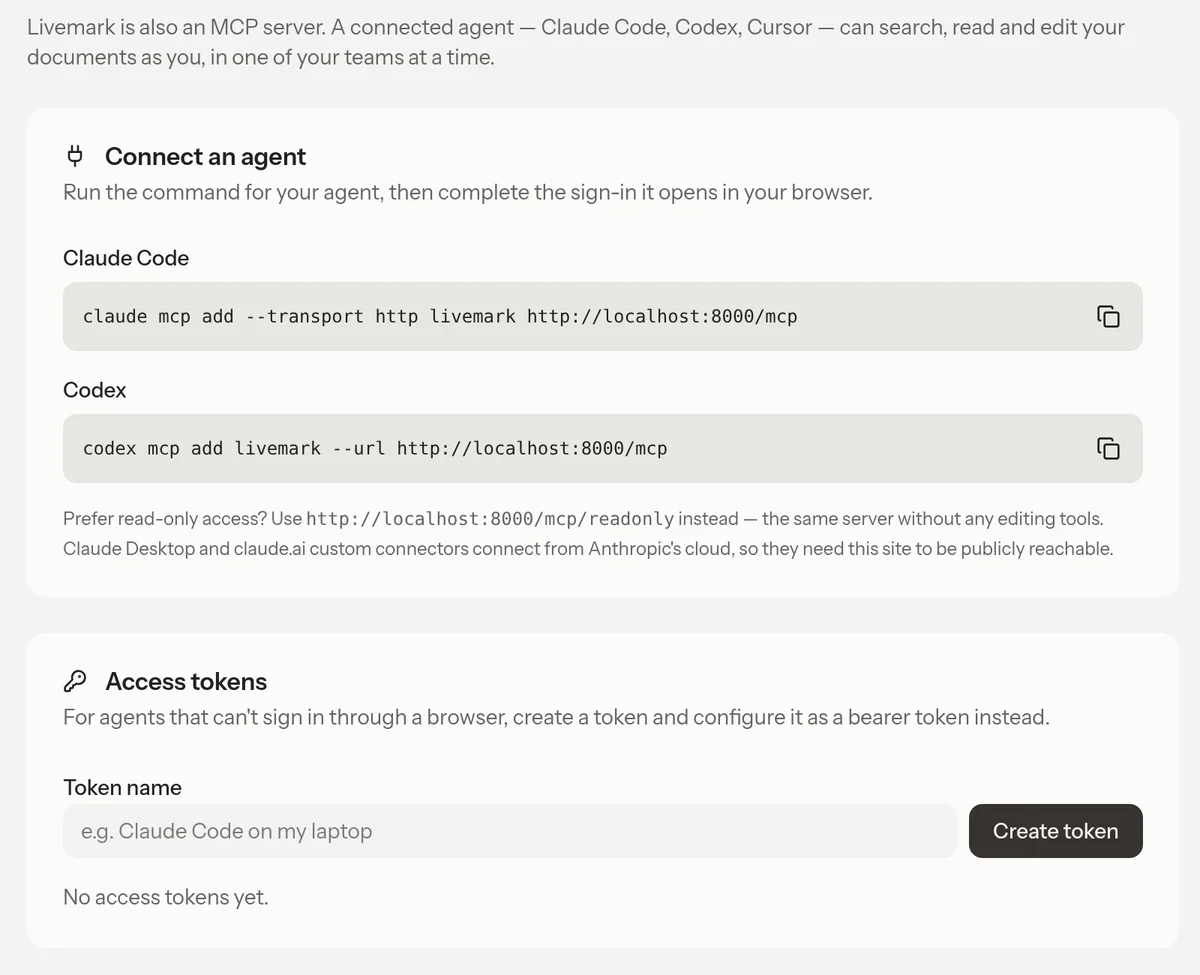
The normal endpoint is /mcp. Claude Desktop and claude.ai custom connectors connect from Anthropic's cloud, so the Livemark site must be publicly reachable from that service. An address reachable only on your computer is not enough.
Choose read-only access
Use /mcp/readonly instead of /mcp when the client should only read. Livemark removes write tools from discovery and refuses their invocation on that endpoint. This is an endpoint restriction, not a separate read-only OAuth scope.
A read-only connection still needs authentication and can read content within your permitted teams, not just the document open in your browser. Use it only with clients you trust.
Keep bearer tokens private even when using the read-only endpoint.
Use a personal access token
If a client cannot sign in through a browser, create a token instead.
- Open Access tokens on Connections.
- Enter a Token name that identifies the client or device.
- Select Create token.
- Copy the new value immediately. Livemark does not show it again.
- Configure the client to send it as a bearer token.
Store tokens in the client's secret configuration, not in a repository, prompt, document, or screenshot. Use separate named tokens for clients you may need to revoke independently. The list shows active tokens and any expiry date.
Select the right team
Ask the agent to call whoami to list the teams your account can access. Each call works in one team.
If you belong to several teams, list and search calls need the appropriate team_id. Some operations can establish the team through a project or other named item. Your browser's current team is not the agent's authority, so switching the web sidebar does not restrict an external agent to that team.
Access follows your membership, not your organization's ownership. An organization admin outside a team does not gain that team's content through MCP. If you have no team, whoami still works, but content tools explain that you need to start a team or accept an invitation.
Review changes and remove access
The normal server includes document editing, comments, projects, versions, files, and memory tools. Read the client's proposed action before approving it. Use Suggestions and Versions when reviewing document changes. Revoking access does not undo completed edits.
For a personal token, select Revoke beside its name on Connections. Revocation also invalidates its associated refresh token when one exists.
OAuth clients appear under Connected applications. The current page lists those applications but does not offer an application-level revoke button. Do not confuse deleting a client configuration with revoking its authorization.
If authentication fails, check the endpoint, token expiry or revocation, and browser consent. If a call asks for a team, supply the ID returned by whoami. Requests are rate-limited. Retry later if the server reports a limit.