Project planning
Assign project owners, set dates, and organize sub-projects.
On this page
Project details show the owner and dates. Where project planning is enabled, you can also set target dates and create sub-projects with separate documents and reference files.
These details are shared with the team. The chat beside them is private to you, but changes you request there can update shared project information.
Set the owner
New projects assign their creator as owner. To hand responsibility to someone else:
- Open the project.
- Select the owner chip beneath the title.
- Choose a teammate from the menu.
The change saves immediately, without a separate Save button. Choose Leave unassigned to remove the owner.
Only the current owner or a team administrator can reassign ownership. Other members can see the owner but do not get an editable owner menu. An administrator must assign a project that is already unassigned.
Ownership does not restrict who can read the project. All members of its team share access. See Teams for membership and roles.
Set or clear dates
- Select Start date beneath the project title.
- Choose a day in the calendar.
- If available, select Target date and choose the intended delivery day.
Each choice saves on selection. To remove a date, reopen its calendar and select Clear. A target date cannot be earlier than the start date. If the form refuses a change, check both dates.
Start dates remain available independently of the project-planning feature. Target dates and nesting depend on that feature. If those controls disappear, the stored target date and parent relationship remain intact, but you cannot change them while the feature is off. See Feature availability.
Split work into sub-projects
- Open a top-level project.
- Use New sub-project in its Sub-projects section.
- Enter the sub-project's name.
- Create it to open its own project page.
You can also choose Parent project in the new-project dialog when that field is offered. Existing projects have a Parent project chip for moving them under an eligible project. Select Move to the top level to remove an existing parent.
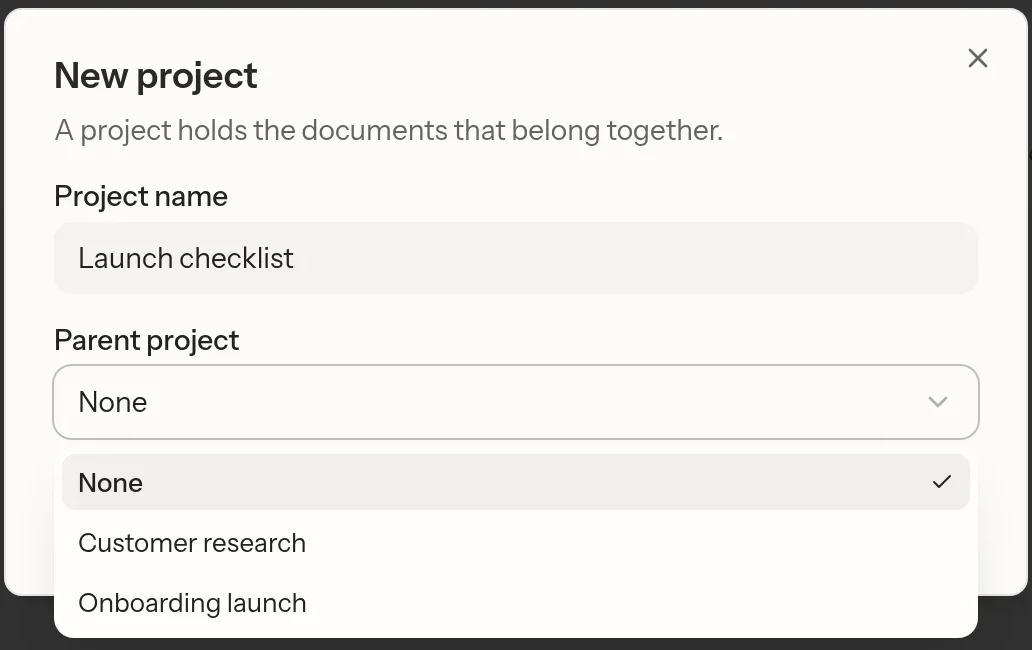
Projects nest one level deep. A sub-project cannot hold another sub-project, and a project that already holds children cannot become a child itself. Eligible parents must be active top-level projects in the same team. If the menu has no choices, check those conditions. If a parent changes while your form is open, reload and choose again.
Ask the assistant for planning help
Ask the project assistant to summarize the brief, identify unanswered questions, or draft a document from the project's source material. You can also request a specific project change, such as setting a target date or updating the description.
Updating the description replaces its existing text. Specify what to keep, then check the result.
The project assistant can create documents and add content. For rewrites, open the document's own chat so you can see the writing being changed. The project assistant is instructed to direct you there, but that instruction is not a technical permission boundary. Review the resulting changes. See Chat and Editing.
Check what a parent includes
A parent's document counts and contents do not include child projects. The parent assistant searches its own documents and files, plus files shared for every project, not its children's work.
Open a sub-project's chat to ask about its sources. For completed work, ask an administrator to archive the parent only when the whole group should leave active views. Projects explains archive and recovery behavior.