Personal memories
Manage the private preferences the assistant uses across your conversations and teams.
On this page
Personal memories save preferences such as British spelling or shorter replies for use across conversations.
These memories belong to your account, not your current team. They remain the same when you switch teams. Teammates and team administrators cannot browse or edit your personal memories.
Review what the assistant remembers
- Open Settings.
- Choose Your memories.
- Read each note and remove or correct anything that no longer describes your preferences.
The page shows the active-memory count and offers New memory. If nothing has been saved, the empty state says Nothing remembered yet.
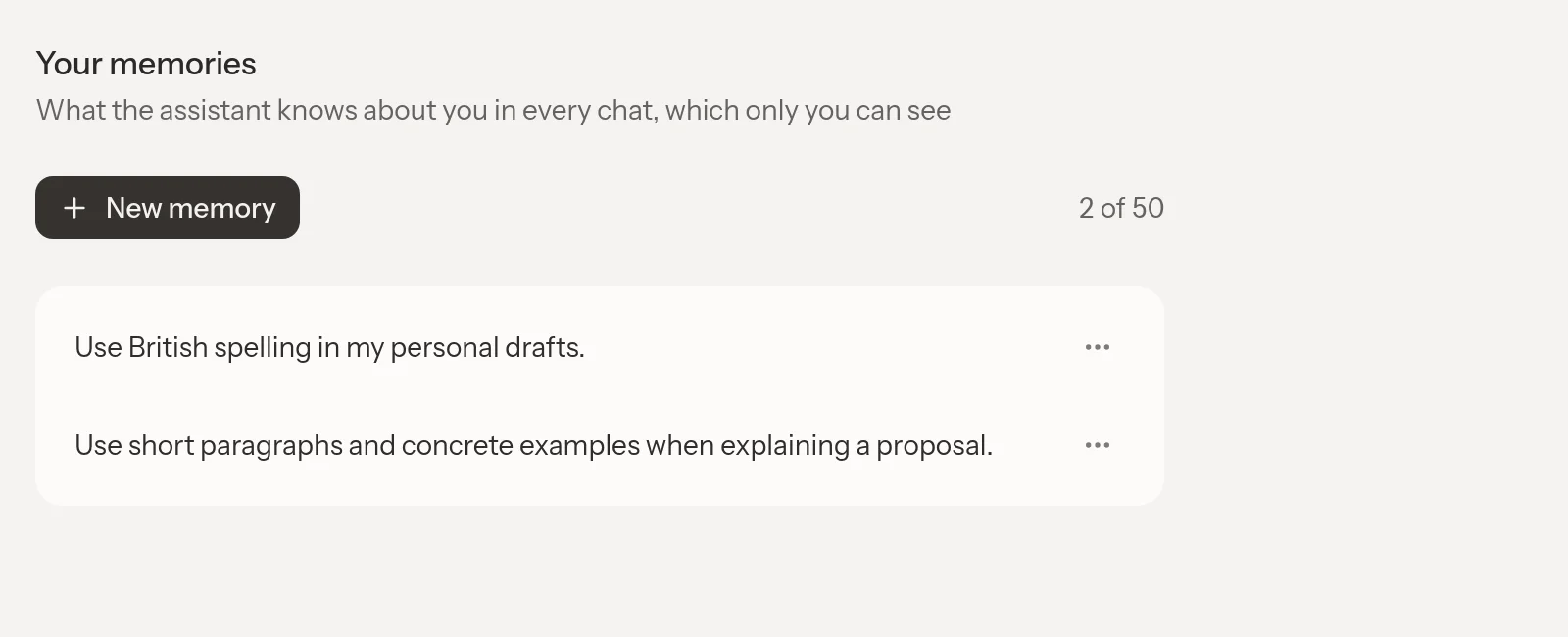
The in-app assistant reads your personal memories across your chats, not only the conversation where you saved them.
Add a preference yourself
- Select New memory.
- Write one clear preference.
- Check the character count.
- Select Save.
For example, write "Use short paragraphs and concrete examples when explaining a proposal."
You can keep up to 50 active memories, each no more than 500 characters. The editor reports when text is too long and disables Save until you shorten it. At 50 memories, delete a note before adding another. Keep reference material in Files.
Ask the assistant to remember a preference
Tell the assistant what you want it to remember about you. For example, "Remember that I prefer concise answers unless I ask for detail."
Check the memory card after the assistant responds. Confirm both the wording and whether it belongs to You or to shared project context. A preference about your replies belongs to you. A decision about the team's release scope belongs in Memories.
Personal memories do not require a teammate's acceptance. If the assistant inferred the wrong preference, edit or undo the saved memory rather than trying to cancel it with a contradictory new note.
Edit or remove a note
Use the menu beside a memory to edit or delete it. After editing, select Save. Save remains disabled when the text has not changed or exceeds the character limit. Use Cancel to leave the saved version intact.
Deleting a preference removes it from active memory context. It does not rewrite earlier messages or remove text that the assistant already put into a document. Check affected writing separately if a preference caused an unwanted result.
Correct personal versus shared placement
A chat memory card can offer Applies to with You and shared destinations. Moving a note out of You makes it visible to the team. Read the confirmation before selecting Move.
You need the relevant shared-memory permission as well as ownership of the personal note. Members can write project memories. Team-wide memories require an administrator. A memory connected to replacement history may have its placement locked, with an explanation beside the control.
The assistant is instructed not to repeat your private context in shared replies, but personal memory does not guarantee that generated wording stays private. Review shared output before publishing it. Team conventions still govern shared writing even when your preferences differ.
If Your memories is unavailable, consult Feature availability. For repeatable team procedures rather than personal preferences, use Skills.