Write your first document
Create a project document, write a first draft, and ask your team to review it.
On this page
Create a shared draft, save a checkpoint, and request a review.
Before you start
Sign in with a verified account and select the team that owns the work. Documents belong to a team through a project. Team members can read, edit, comment, and suggest changes. Sending a document link does not grant access to someone outside that team.
If you need to invite someone first, see teams. You do not need an AI conversation to create or edit a document.
Create the document
- Open Documents in the sidebar.
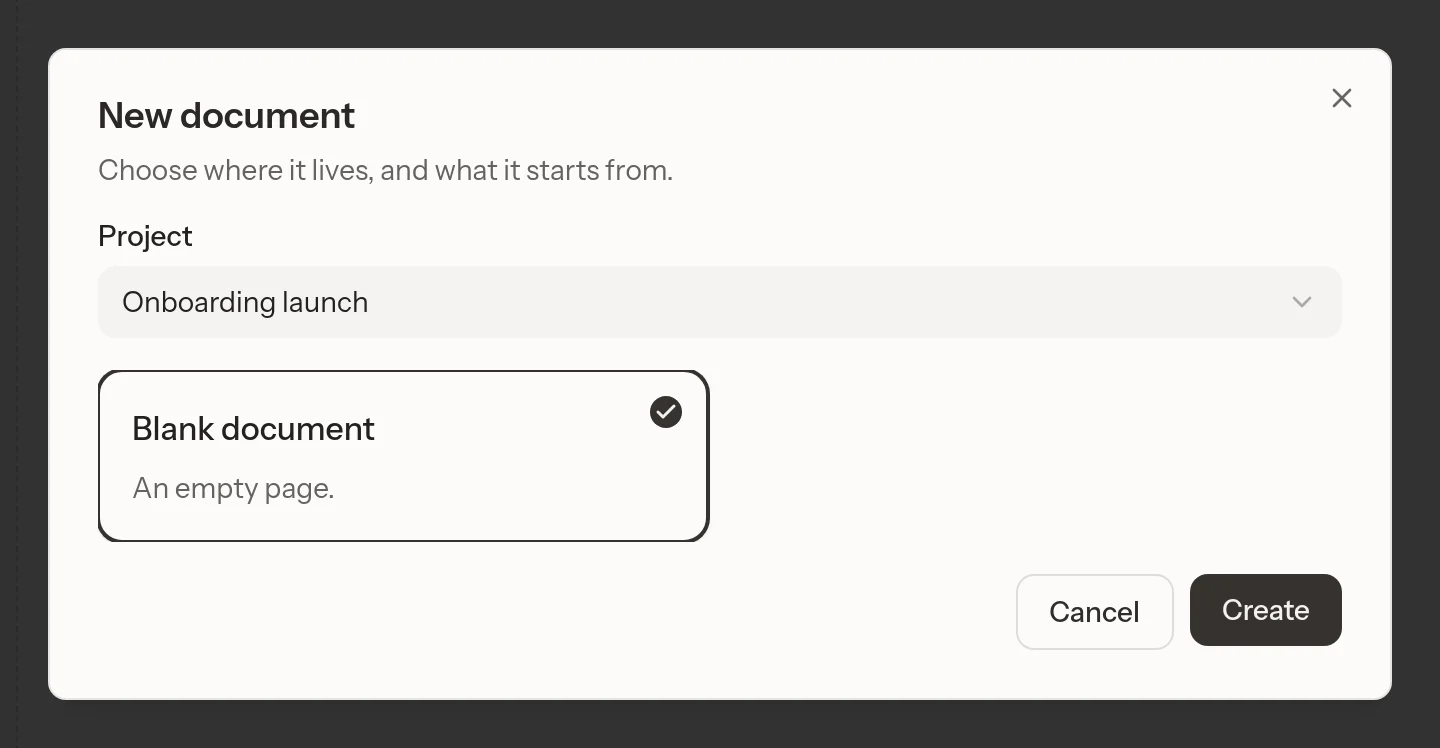
- Click New document.
- Choose a Project. If this is your team's first project, enter its name. Otherwise, choose an existing project or New project….
- Choose Blank document or an available team template.
- Click Create.
When the team has exactly one project and no templates, New document opens the new document without a dialog.
The editor opens inside the selected project. If you used a template, replace its example text and questions.
Write a small first draft
- Give the document a descriptive title.
- Click in the body and write the problem you want to solve.
- Type
/and choose Heading 2 to introduce the next section. - Add the proposed approach and a way to tell whether it worked.
The title is separate from the body. Use headings below the title rather than adding another top-level title inside the document. Select text to use inline formatting, such as Bold, Italic, or a link.
Other team members can edit the same document at the same time. Use comments to discuss a passage without changing the draft.
Ask one concrete question
Select a passage and choose Comment. Write and post your question. Open Comments to follow replies.
For AI help in that discussion, mention @Livemark. For a broader drafting task, use the document's chat. Be explicit about whether you want the assistant to change the draft or propose a change first. Ordinary edit requests apply directly. A request to review a suggestion first leaves a proposal for Accept or Reject.
For example, ask, "Suggest a clearer success criterion and let me review it before applying it."
Save a checkpoint and ask for review
- Open the Version control.
- Choose Create version.
- Wait for the confirmation that the numbered version was created.
- Set the document's status to Open.
- Open Reviews, choose Add reviewer, and select a teammate.
The reviewer can answer Ready or Not yet. A comment is discussion, not a readiness answer. Approval depends on the named reviewers' answers, and an AI review cannot approve the document on its own.
If something goes wrong
If template initialization fails, read the error before trying again. Creation does not leave an empty document. If a document is missing, check the selected team.
If an AI edit is wrong, look for Undo on that change. For a document-wide return to an earlier draft, use a saved version. Versions are deliberate checkpoints, not a separate entry for every keystroke.
Continue with editing, suggestions, reviews, and versions.