Skills
Invoke a team procedure in chat, create reusable assistant instructions, and import Markdown skills.
On this page
A skill is a reusable procedure for the assistant, such as a specification review or a changelog draft.
Skills belong to the current team. Every member can read and invoke them. Only team administrators can create, import, edit, or delete them, because their instructions affect work across the team.
Invoke a skill in chat
- Open the conversation where the work belongs.
- Type
/at the start of the message. - Choose a skill from the picker.
- Add the specific task after its handle.
- Send the message.
For example, select a specification-review procedure and ask it to review the current draft for unresolved decisions.
The handle in the transcript links back to the skill so you can inspect the instructions. An invocation applies the procedure to that message. It is not a permanent change to every future turn.
A skill does not grant new permissions or tools. It supplies instructions to the assistant, not an enforced safety boundary. For a document rewrite, use the document's own chat so you can inspect the changes alongside the conversation. See Chat.
Create a team procedure
If you administer the team:
- Open Skills in the sidebar.
- Select New skill.
- Set Skill name to a recognizable action.
- Write a Description that says when the procedure applies.
- Write the instructions in Content.
- Select Save.
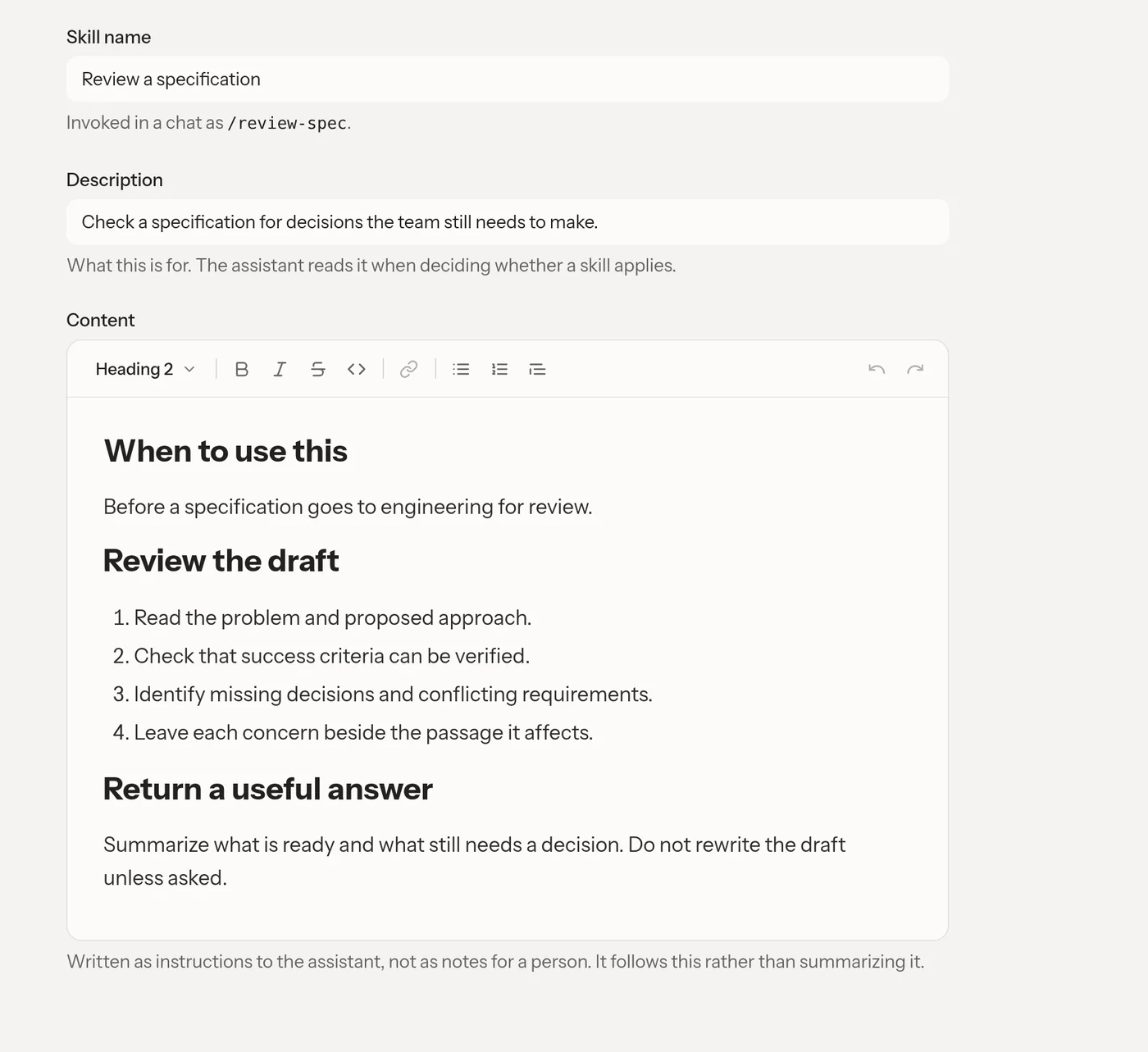
The editor shows the chat handle, which is derived from the skill's name. Check the displayed handle after renaming a skill.
Write instructions that produce a checkable result
Tell the assistant when to use the procedure, what to inspect, what actions to take, and what to return. For a review, distinguish findings from edits. If the procedure should leave comments instead of rewriting text, say so directly.
Name the evidence the assistant needs and what to do when it is missing. For example, "Identify requirements without measurable success criteria and leave a comment beside each affected passage."
Names and descriptions can each be up to 255 characters. Content can be up to 50,000 characters.
Import an existing Markdown procedure
- Open Skills and select Import.
- Choose
.mdor.markdownfiles. - Review the import results.
- Open each imported skill and check its name, description, content, and handle.
You can import up to 10 files at once, each up to 4 MiB. Each file becomes one skill. ZIP bundles and companion reference-file collections are not supported.
The importer uses frontmatter names and descriptions when present. Without a name, it can use the opening level-one heading or the filename. Empty procedures and files that are not valid text fail import. Convert the source to a plain UTF-8 Markdown procedure and retry. Imported content is limited to 50,000 characters, so check the end of a long procedure after import.
Maintain the right kind of context
Edit a skill when the team's procedure changes, then select Save. Deleting a skill removes the reusable procedure, not documents already produced with it. Review generated work rather than assuming an instruction change corrects earlier output.
Use Templates for a document's starting structure, Files for source evidence, and Memories for agreed facts.