Connections
Let the assistant read connected services using your own access.
On this page
Connections let Livemark's assistant look up information in services you authorize. These are outbound connections: Livemark calls another service on your behalf. Connecting an external agent to Livemark is the opposite direction and is covered in MCP.
Open Connections under For you in the sidebar. The Tools the assistant can use section appears when outbound connectors are enabled for your account and installation. See Feature availability if that section is missing.
Connect a service
- Check the current team in the team switcher.
- Open Connections.
- Find the service under Tools the assistant can use.
- Select Connect.
- Complete the service's sign-in and consent process.
- Return to Livemark and check the connection status.
The offered services include Linear, GitHub, and Notion. A connected row can show the account that the service identified. Check that account before asking the assistant to read private work.
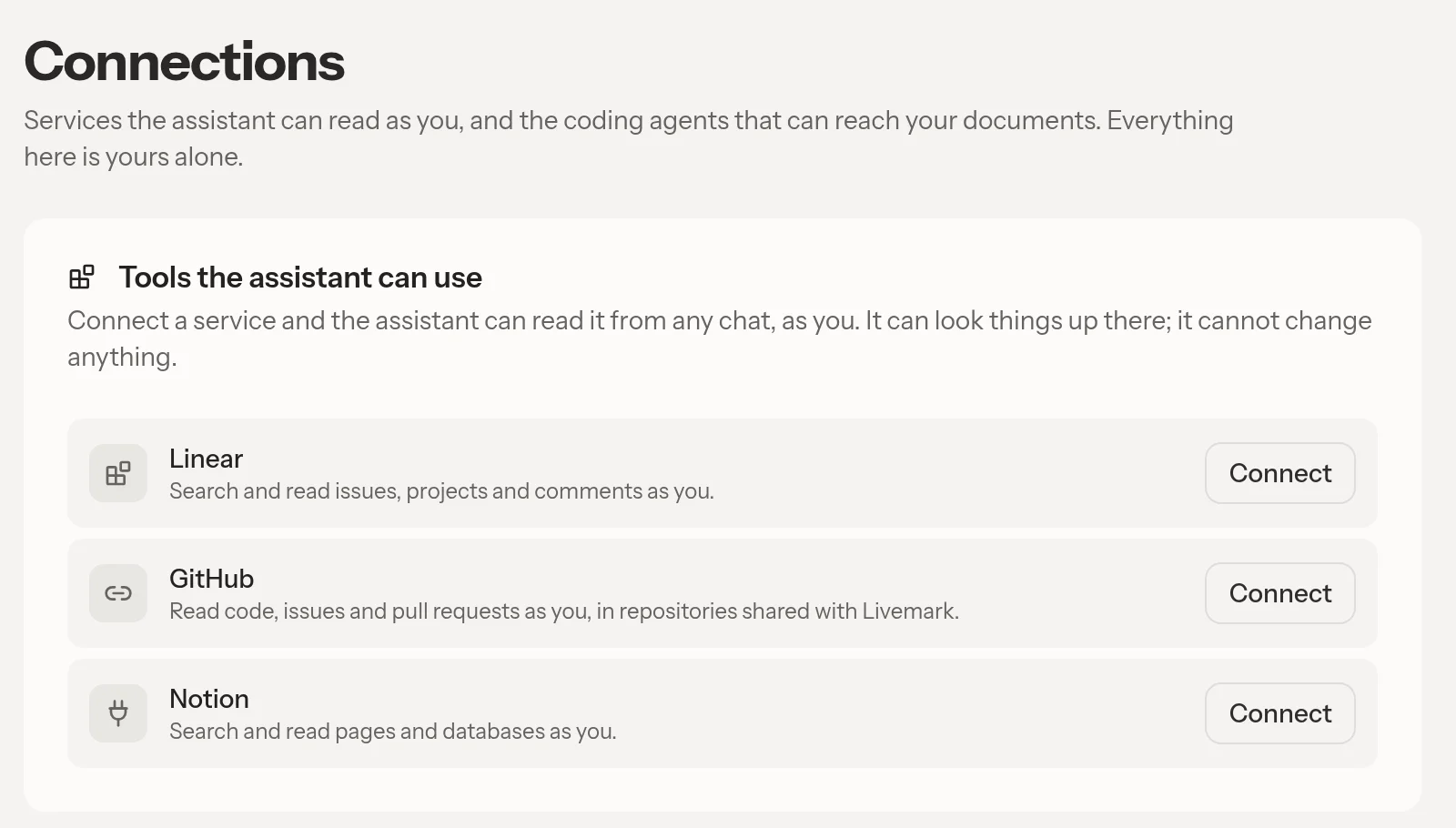
Connections belong to you and the current team. Each teammate must connect their own account. A connection does not carry over to another team's chats.
Ask about connected work
Open a Chat and name the service and project, repository, issue, or page you want the assistant to read.
The built-in Linear, GitHub, and Notion connections offer read-only tools. They do not give the assistant permission to change those services. The remote service's permissions still apply. A connection does not grant access to every repository or page in an organization.
GitHub also requires the Livemark app to be installed for the repositories you want to read. Use the installation link on its connection row when needed. GitHub decides who can install the app or request installation.
Disconnecting does not remove text already returned in chat or copied into a shared document.
Use a team MCP server
Team admins can add a custom server under Servers your team offers. Members connect their own accounts after the server is registered.
Only add servers you trust. Unlike the built-in integrations, a custom server's tools are not automatically restricted to reading. Administrators must verify what its tools can do and limit permissions on the remote service itself.
- Enter a name and the server's MCP address.
- Select Add server.
- Review the tools the server offers.
- Complete any required client configuration.
Some authorization servers need an administrator to supply a client ID and client secret. Those are credentials for registering Livemark with that service, not personal Livemark access tokens.
For a server that accepts personal tokens, its connection row offers Use a token. Paste the token into the dedicated field and select Save token. Do not paste tokens into a chat or document. A server without sign-in still requires you to select Connect before the assistant uses it.
When Livemark detects changed tool names or descriptions, it pauses that custom server's tools for administrator review. Tool listings are cached, so detection is not immediate. The first listing is recorded automatically, and this check does not cover every change to tool inputs or behavior. A server returning to its previously recorded listing can resume without another confirmation.
Disconnect or fix a failure
Select Disconnect on the service row and confirm. That removes your connection. You can reconnect later. Removing a custom server as an admin is broader: everyone on the team loses their connection to it.
Cancelled consent leaves the service unconnected. Select Connect to try again. If Livemark asks you to reconnect, complete sign-in again.
For missing results, check the connected account, remote permissions, GitHub installation access, and current team. If a server's tools changed, ask an admin to review them.