Organizations
Keep separate teams under one organization without merging their content access.
On this page
An organization groups teams and the people who administer them. Teams remain separate places for work. Organization administration does not automatically grant access to every team's documents, files, or chats.
When an organization has one team, Livemark usually presents it as that team. Once it has several teams, the team switcher groups them under the organization's name.
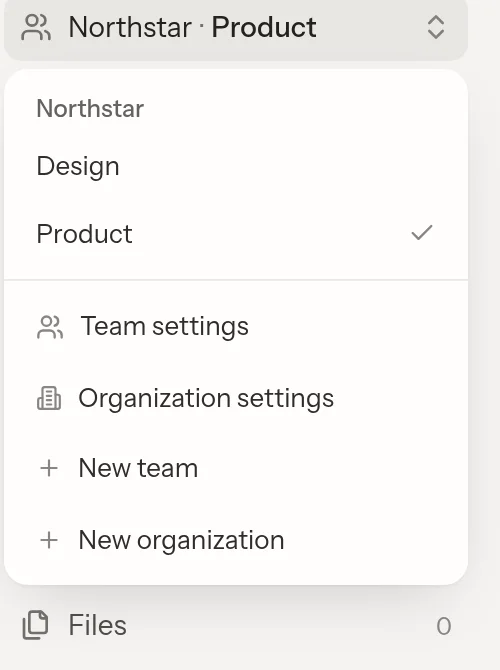
Start a separate organization
- Open the team switcher.
- Select New organization.
- Enter a name.
- Select Create organization.
The organization starts with one team of the same name and has its own people.
Anyone with an account can start an organization. Creating a new organization does not move existing documents or memberships into it.
Add a team to an organization
Organization owners and admins can select New team from the switcher. That adds a team to the current team's organization. Organization settings also has a Teams section for managing its teams.
Check the organization before confirming. New team adds to the current organization. New organization creates a separate organization.
The switcher shows the teams you belong to, grouped when needed. An organization that you administer from outside its teams can still provide a route to its settings.
Manage people and roles
Open Organization settings from the switcher when available. For a multi-team organization, owners and admins can also reach Organization from Settings.
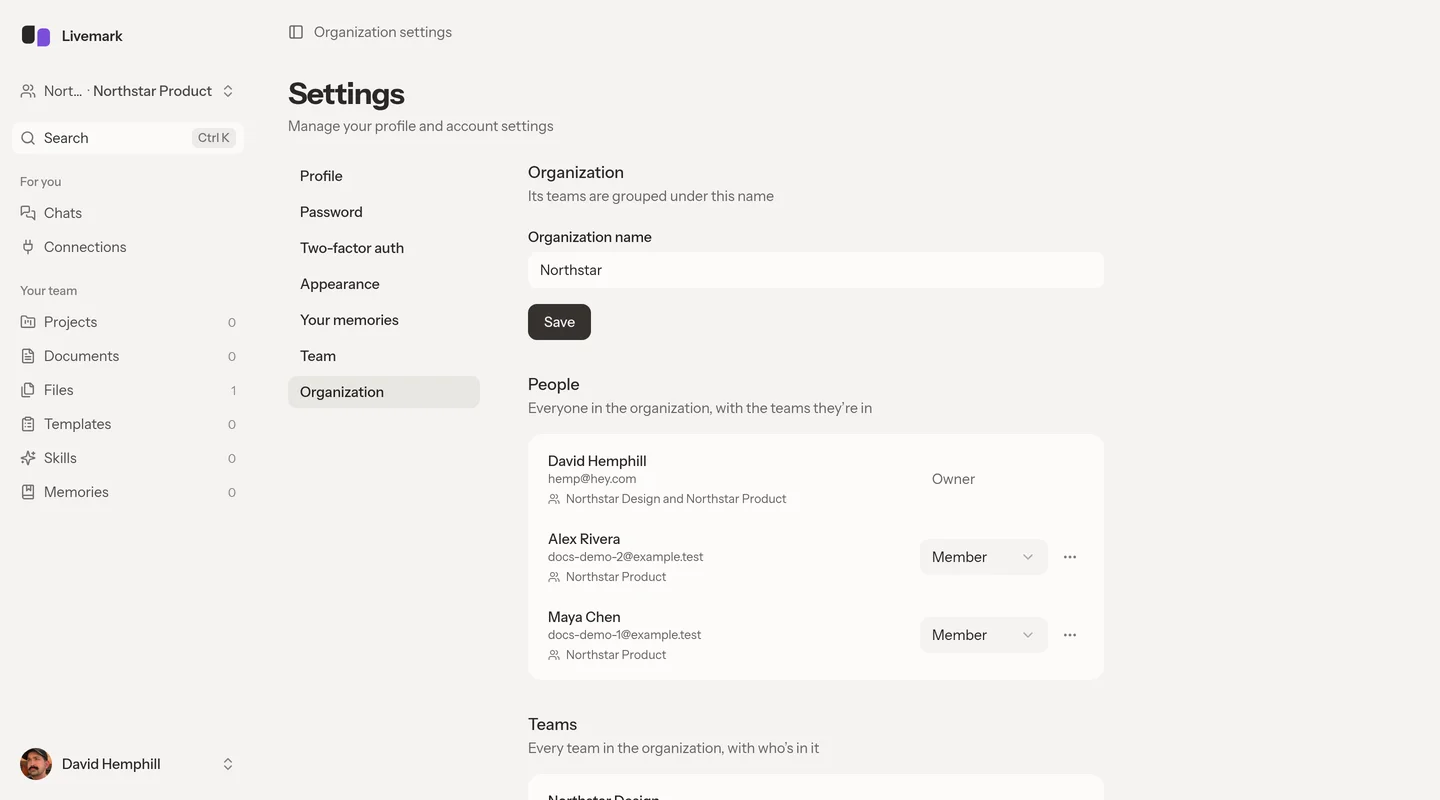
Organization roles are Owner, Admin, and Member. Owners and admins manage the organization's name, people, and teams. The owner alone can transfer ownership or delete the organization.
Use People to inspect each person's team memberships, change an eligible organization role, add them to teams, or remove them from the organization. Removing a person from the organization is broader than removing a single team membership. Review their team list first.
Use Transfer ownership to assign a new owner. You lose owner-only authority after the transfer.
Join a team before reading its work
Owners and admins can inspect team administration without membership. To access a team's content, use its Add myself action. That creates an ordinary visible membership and notifies the team's admins.
After joining, you have effective team-admin authority because of your organization role. Until then, organization administration does not grant document access through the web or MCP.
A team's member list shows who has content access. The organization People list shows organizational membership and administration, not access to every team's content.
Manage an organization AI key when available
If enabled, owners and admins can configure an Anthropic or OpenAI API key and choose an offered model. The key applies to every team in the organization. In a single-team organization, these controls appear in Team settings. Multi-team team settings link to the organization-level configuration.
Save keys only in the dedicated form. Livemark checks a new key before replacing the existing one. A failed replacement leaves the current key active and displays a field error. See Feature availability for the rollout limits and removal behavior.
Delete with care
An owner can delete an organization only after no other people remain. Team deletion also requires clearing other team memberships. Deleting the last team deletes the organization as well, so the same owner-level restrictions apply.
Deletion permanently removes the affected teams and their work. There is no undo. Transfer ownership to keep the organization without you. If a control is absent, check your organization role. Team-admin permission is not enough.