Edit and format a document
Structure a shared draft with headings, inline formatting, lists, tables, and code blocks.
On this page
Write in the document body. Use the editor's controls for formatting, and comments or suggestions to discuss changes.
Before you edit
You need access to the team that owns the document. All members of that team can edit. There is no separate read-only team-member role for documents.
Edits affect the shared document. Before a substantial rewrite, open Version and choose Create version. Wait for confirmation so you have a document-wide recovery point.
Give the document a structure
- Enter the document's title in the title field.
- Click in the body and write the introductory text.
- Use the block selector to choose Heading 2, Heading 3, or Heading 4 for a section.
- Choose Paragraph when you return to ordinary prose.
The title is the top-level heading, including in Markdown exports. Body controls start at Heading 2 and do not offer Heading 1.
Use Bullet list for unordered items, Numbered list for steps, and Code block for code samples. The block selector does not offer checklists, text colors, or alignment.
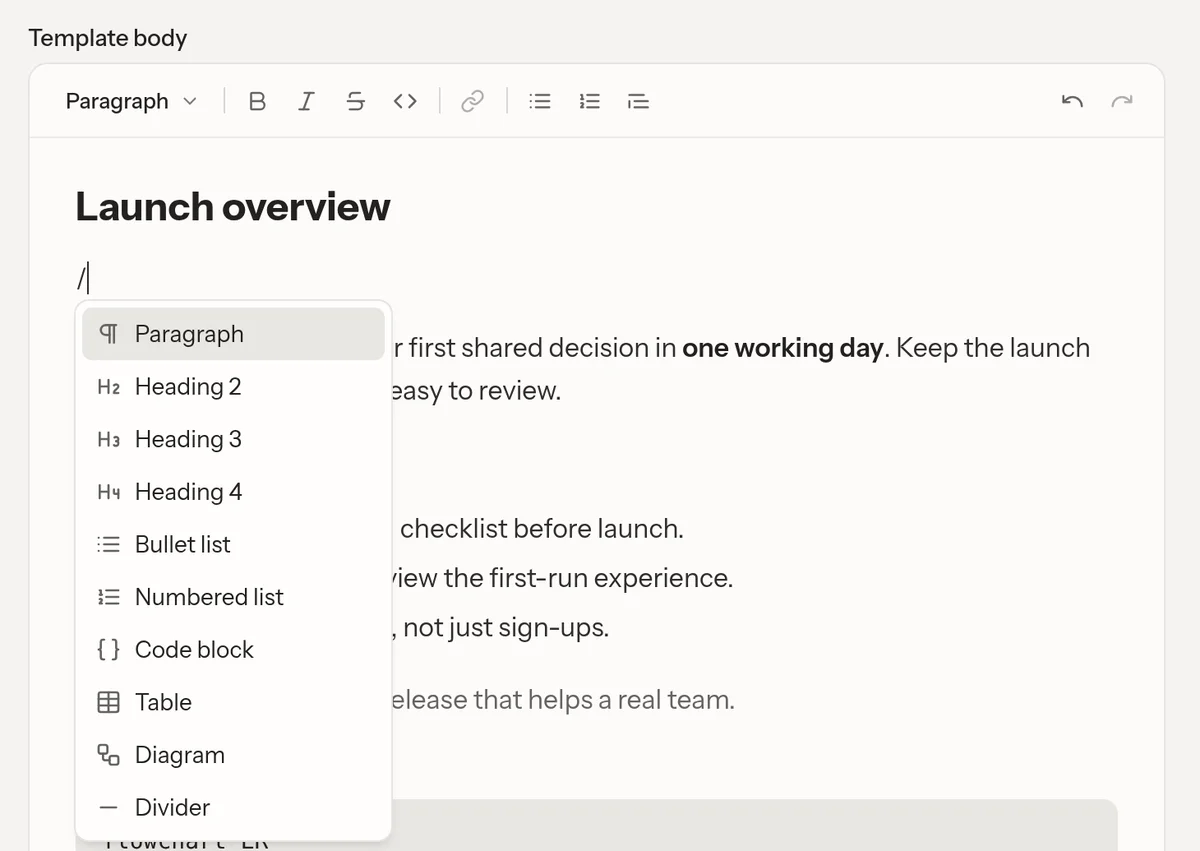
Insert a block with the slash menu
Type / in the body to open the insertion menu. Continue typing to filter its choices, then choose the block you need.
Alongside paragraphs, headings, lists, and code blocks, the menu includes:
- Table, which starts a table with a header row.
- Divider, which separates neighboring parts of the document.
- Diagram, which starts a Mermaid code block with a valid example.
The command replaces the typed slash query with the selected structure. A diagram is still a code block containing source text, not a separate drawing canvas. See diagrams for that workflow.
Format a passage
Select text to use the inline controls. Bold, Italic, Underline, Code, and links apply within a passage rather than changing its block type.
To discuss a passage, select it and choose Comment. To propose a replacement for approval, choose Suggest edit. See comments and suggestions.
Use your preferred keybindings
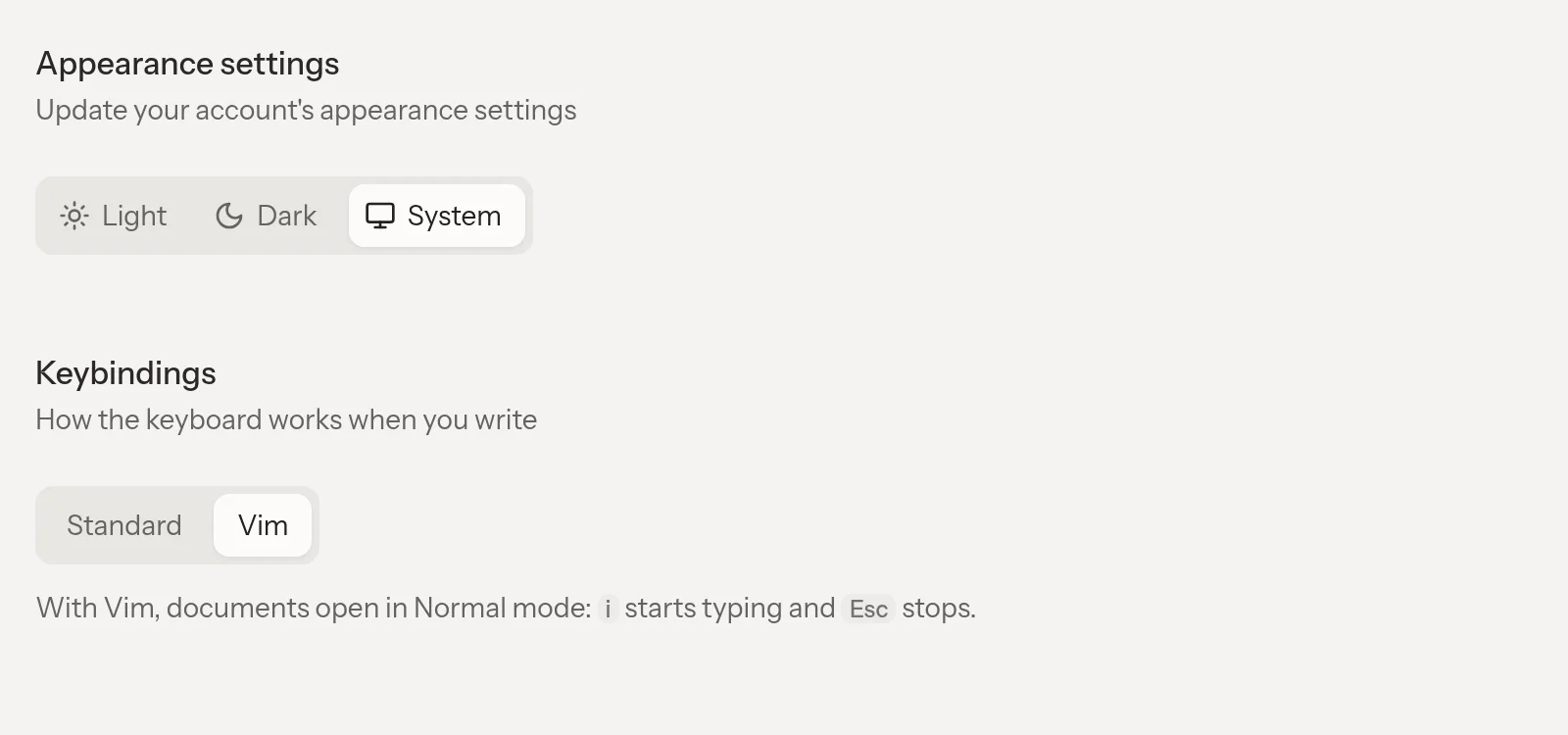
Where Vim is available for your account, Appearance settings offers Standard or Vim under Keybindings. With Vim enabled in a supported desktop environment, documents open in Normal mode. Press i to start typing and Esc to stop. See feature availability if the control is absent.
If typing does nothing after enabling Vim, check the mode. The slash menu does not open in Vim's Normal mode.
Recover the right amount of work
For an assistant's applied edit, inspect the change record and use Undo when it is available. An assistant normally applies an edit immediately unless you explicitly ask to review a proposal first.
To restore an earlier draft, use versions. Restoration changes the shared document for everyone. Coordinate with active collaborators first. Versions do not record every keystroke as a separate history entry.