Chat
Ask the assistant questions in a private chat and create documents for your team.
On this page
Use chat to ask questions or create a first draft without opening a document.
A standalone chat starts with your request. A project's chat uses that project's context. Use a document's chat to work on that document.
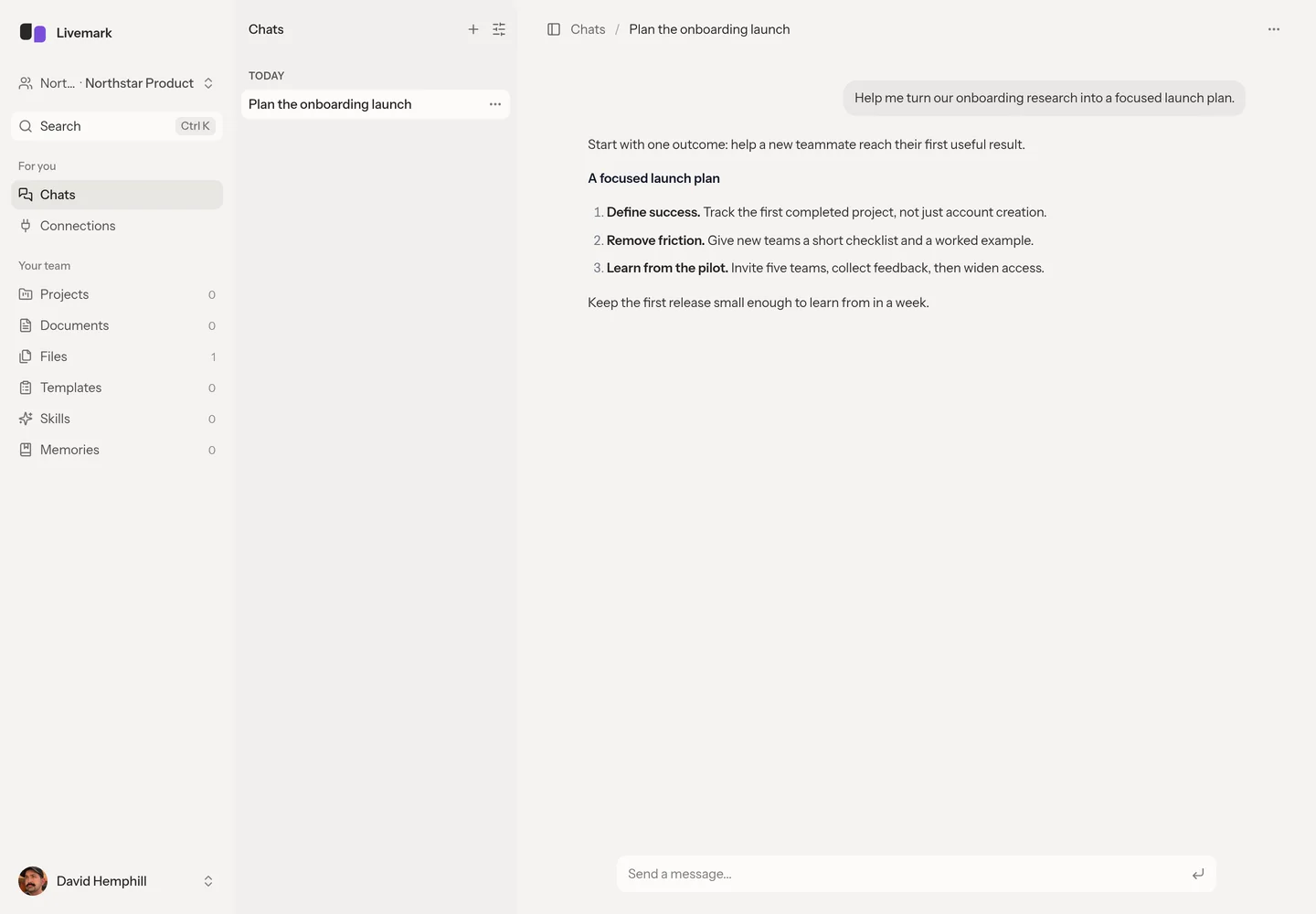
Start a standalone conversation
- Open Chats in the sidebar.
- Select New chat.
- Describe the task and the result you want.
- Press Enter or select Send.
Name the relevant project or sources when your request depends on existing work.
The assistant may ask a question with selectable answers. Choose an answer, enter your own response, or reply in the conversation instead of using the question card.
If the composer offers suggested message text, Tab fills it into the box. Review the text before sending it. Escape dismisses that suggestion.
Keep private discussion separate from shared results
Standalone chats are private to their owner. Sharing a chat URL does not let a teammate read the transcript. A project's chat is also private to the person using it, even though the project itself is shared.
Privacy of the conversation does not make its results private. A document created in a team is shared team work. Project updates and shared memories have their own access boundaries. Before asking the assistant to preserve something, specify whether you mean a document, a project decision, or a personal memory.
For a discussion collaborators should see, use Comments on the document. Mention @Livemark in a thread to involve the assistant there. Its response belongs to that shared thread, and the mention does not grant extra editing permissions.
Use the right project context
Open a project when the question concerns its documents, reference files, or decisions. Its assistant searches that project's documents and files, along with files that apply to every project.
Sub-project contents do not roll up into the parent assistant's scope. Open the sub-project for questions about its work. See Projects and Files.
To create a document, ask for one explicitly. If the assistant offers templates, choose a template or a blank document. Open the created document to review it.
Add images or a reusable procedure
Where image attachments are enabled, attach up to five images per message, no more than 10 MiB each. Chat attachments are images, not a replacement for uploading searchable PDFs or notes through Files.
Type / at the start of a message to select a team skill. Add the task after the handle so the assistant knows what to apply the procedure to. Skills explains invocation and permissions.
Pause work and organize conversations
Use Stop if the assistant is working on the wrong task. Stopping preserves the partial reply and does not undo edits already made. For corrections during a run, see Chat controls.
Use the chat menu to rename a conversation so you can recognize it later. Choose Archive to move it to Archived and make it read-only. Use Unarchive before continuing that conversation.
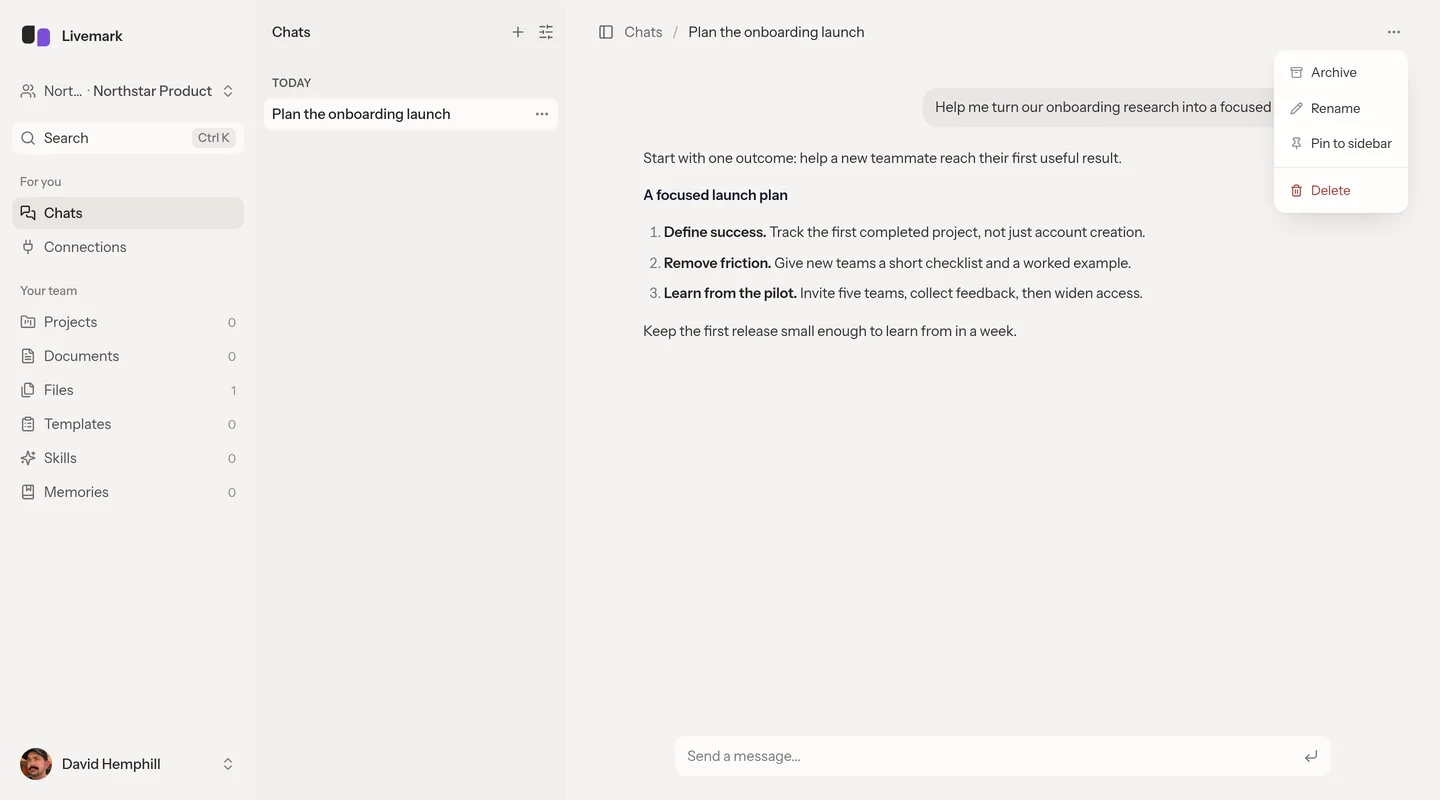
Delete removes the chat and its transcript. Documents created by the chat remain. If a conversation is unavailable, check that you are signed into its owning account and the appropriate team. Unarchive an archived conversation to continue it.