Create and organize documents
Start documents in the right project, find existing work, and put finished drafts away.
On this page
Each document belongs to a project and has its own discussion, proposed changes, reviews, and saved versions.
Check the team before you create
You need a signed-in, verified account. Select the team that owns the work before opening Documents. A document's access follows that team, not the person who happens to hold its link.
Every member of the owning team can edit. There is no read-only team-member role. Leaving the team removes your document access, even if you created the document. See teams for membership changes and projects for project management.
Create a blank document or use a template
- Open Documents in the sidebar.
- Click New document.
- Choose the Project that should contain it.
- Choose Blank document or a team template.
- Click Create.
If the team has no projects, enter a name in Name your first project. If you need another project, choose New project… and enter its name. A new project name cannot be empty.
The dialog defaults to the most recently worked-in project. When there is only one project and no templates, the button creates a blank document without a dialog.
A template supplies the initial document structure. Replace its title and example content. See templates to create or update templates.
If Livemark cannot initialize a template, creation reports a failure rather than leaving a partially initialized document. Resolve the error before retrying.
Find an existing document
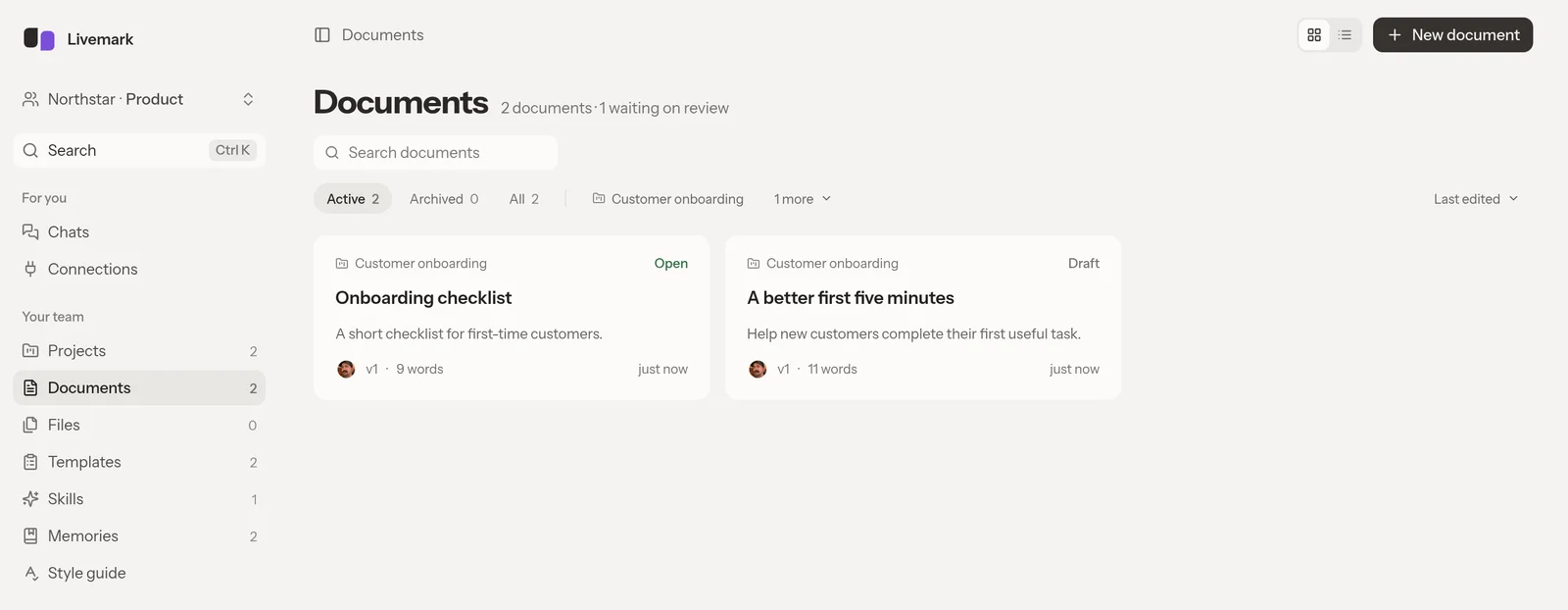
Open Documents and use Search documents to narrow the list. The Active, Archived, and All filters control which documents appear. Project filters help separate work that belongs to different efforts.
Choose a document card or row to open the editor. The list shows status and recent editing activity.
If a document is missing, check the archive filter, the project filter, and the selected team before creating another copy. A link to another team's document does not make you a member of that team.
Set authors and move a document
Select the author names in the document header to open Authors. Tick or untick teammates to change the list. Each choice saves immediately. A document needs at least one author, so add a replacement before removing its last author.
Authorship credits the writing; it does not control access. Any team member who can edit can update the authors. An author who leaves the team can remain credited, but cannot be added back after removal unless they rejoin.
To move the document, select its project-name chip and choose a destination. The picker offers active projects in the same team. The move saves immediately. Open project navigates to the project instead of moving the document. Moving does not create a copy or change the document's team.
Download a Markdown copy
Open Document options in the header and select Download as Markdown. You can also find that action in the command palette.
The downloaded .md file includes the title as a level-one heading, the current version number and authors, then the live document body. The file does not grant access to Livemark. Comments and review controls remain in the app.
Separate status from housekeeping
Use Draft while the document is still being prepared. Set it to Open when you want readiness answers from reviewers. Approved comes through the review workflow rather than acting as an arbitrary status label.
Archiving is a separate action. Use Archive in the document's actions when you want to put it away, then confirm the dialog. To bring it back, find it under Archived or All and choose Unarchive.
Archiving and unarchiving preserve the document's status. Use reviews to restart a decision.
Choose the right way to recover work
For an individual applied suggestion, use that change's Undo control when available. For a larger rewrite, create a version before you begin and restore that checkpoint if necessary.
Only the document's creator, while still a team member, or an administrator of the owning team can delete it. To remove a document from the active list without deleting it, archive it.